


Samsung's app icon badges can turn a clean home screen into a wall of reminders. This guide shows how to disable app icon badges on Samsung Galaxy phones, hide unread notification counts, or keep small dots without numbers. The menu path changes across One UI versions, so start by checking your software build.
What Samsung App Icon Badges Show
App icon badges display unread activity above an app's icon. Samsung may show a number, a dot, or no badge, depending on your selected style.
Messages, Gmail, Phone, WhatsApp, and social apps often create the most badges. The badge does not represent a separate alert system. It reflects notifications that remain unread in the notification shade.
Turning off badges does not mute notifications. Your phone can continue showing alerts on the lock screen, notification panel, status bar, and Always On Display.
Samsung introduced numbered and dot-style app badges with Android 8. Later One UI releases moved the setting between notification and home screen menus. Samsung also warns that screens can vary by device model, carrier, and software version in its Galaxy notification support guide.
Requirements Before You Start
You do not need a special app, launcher, or Samsung account. You only need a Galaxy phone with Samsung's default launcher and access to Settings.
Check these details before changing anything:
- Your phone should run Samsung One UI with the default Home app active.
- Your Galaxy model may show different menu names than another model.
- Android 8 through Android 12 follows older menu paths from the source guide.
- One UI 6, One UI 7, One UI 8, and later builds may place notification controls elsewhere.
- A third-party launcher may manage badges through its own settings.
To check your software version, open Settings, tap About phone, then tap Software information. Look for One UI version and Android version.
If you use a launcher such as Nova Launcher, Microsoft Launcher, or Niagara, Samsung's badge switch may not control the icons. Check the launcher's notification or unread count settings instead.
How to Disable App Icon Badges on Samsung Galaxy
The fastest route uses Samsung's Settings search. This method works well when your phone hides the setting inside a different submenu.
Turn Off All App Icon Badges
- Open Settings.
Samsung places the main notification controls inside the Settings app. You can also swipe down twice and tap the gear icon.
- Tap the search icon.
The search icon usually appears near the top of the Settings screen. Some builds show a search bar instead.
- Search for App icon badges.
Use the full phrase because Samsung may rank similar results such as notification pop-up style.
- Tap App icon badges in the results.
Your phone should open the badge control page. If search shows App icon badges under Notifications, choose that result.
- Turn off the App icon badges switch.
Samsung removes badge numbers and dots from supported app icons. The change normally takes effect on the home screen and app drawer within seconds.
- Return to the home screen.
Check Messages, Gmail, Phone, and another app with unread notifications. The notification shade should continue working.
Use the One UI Notification Menu
Some Galaxy phones use this path:
- Open Settings.
- Tap Notifications.
- Tap Advanced settings.
- Tap App icon badges.
- Turn off App icon badges.
Samsung used this route on many Android 11 and Android 12 devices. Current One UI builds may show the setting directly inside Notifications or inside Home screen.
Samsung's official app icon badge instructions also confirm that Galaxy phones can show numbered or dot-style badges.
Use Home Screen Settings
Recent One UI builds may place the global switch here:
- Open Settings.
- Tap Home screen.
- Tap App icon badges.
- Turn off the switch.
You can also reach the same screen from the launcher:
- Press and hold an empty area on the home screen.
- Tap Settings or Home screen settings.
- Tap App icon badges.
- Turn off the switch.
The wording may change to Home screen settings on older Galaxy phones.
How to Hide Numbers but Keep Notification Dots
You do not need to remove every badge. Samsung lets you replace large unread counts with smaller dot-style indicators.
A dot can reduce visual clutter without hiding the fact that an app needs attention. This option suits people who want a reminder without seeing "47" above Gmail or Messages.
- Open Settings.
- Search for App icon badges.
- Tap App icon badges.
- Tap the setting name, not only the main switch.
- Choose Dot or Show without number.
Older Galaxy phones may use Show without number. Newer versions commonly use Dot.
| Badge choice | Home screen result | Notification panel | Best for |
|---|---|---|---|
| Show with number | Displays unread count | Keeps notifications | Users who need exact counts |
| Dot | Displays a small dot | Keeps notifications | Users who want a quiet reminder |
| Off | Displays no badge | Keeps notifications | Users who prefer a clean home screen |
Does a dot give you enough information, or does any badge pull your attention? Pick the setting that matches how often you check the notification shade.
How to Keep App Notifications Without Badges
Disabling badges does not disable the underlying app notifications. Samsung separates badge visibility from alert behavior.
You can continue receiving:
- Lock screen alerts.
- Notification panel entries.
- Sounds and vibration.
- Status bar icons.
- Heads-up pop-ups.
- Notification history entries.
Open Settings, tap Notifications, then tap App notifications to control individual apps. Select an app and change its alert permissions, sound, vibration, or pop-up behavior.
That separation matters for Messages and Phone. You can remove their home screen badges while keeping incoming call alerts and text notifications active.
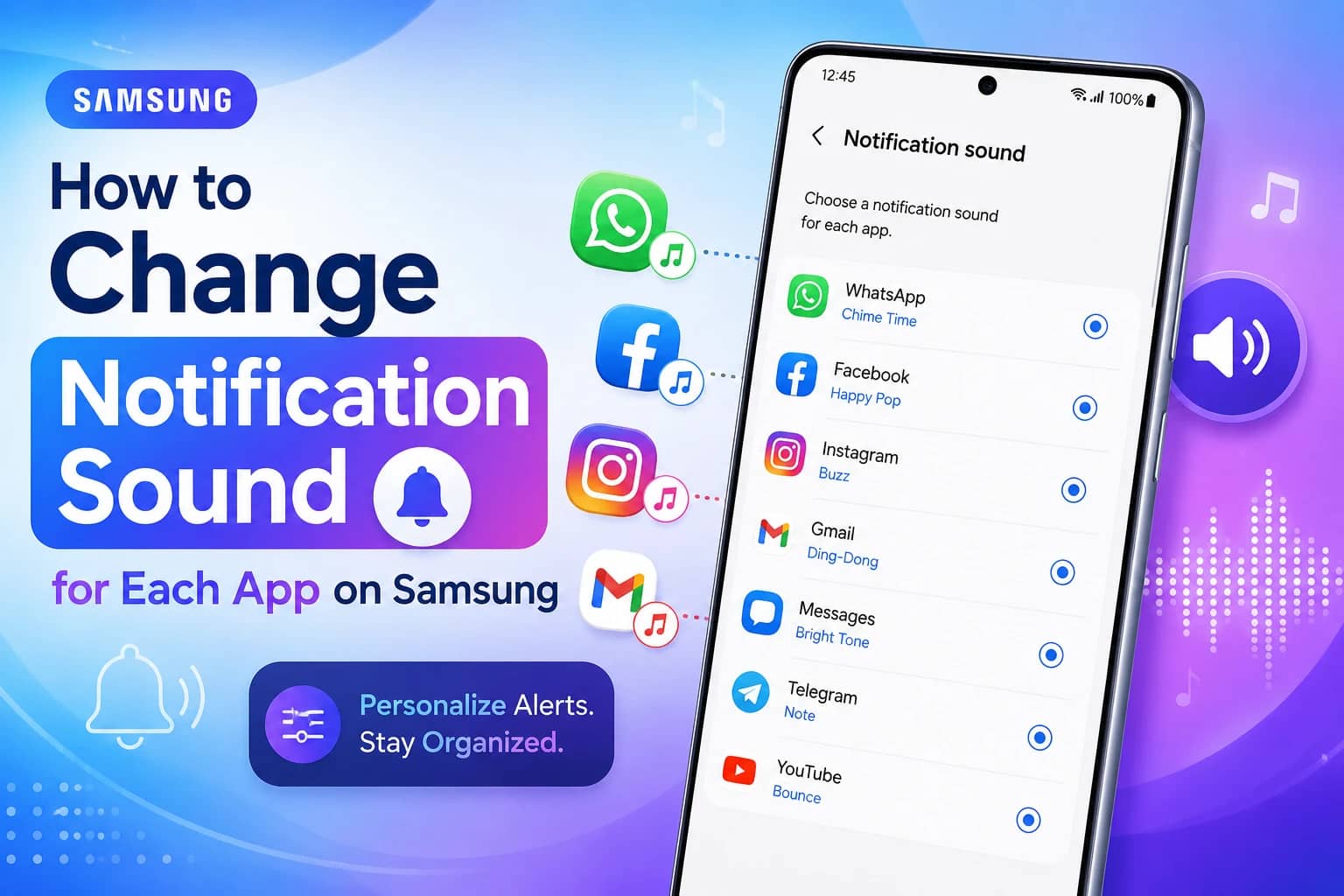
If you want per-app notification control, check SammyGuru's guide on changing notification sounds for each Samsung app. It explains Samsung's Manage notification categories for each app setting.
How to View an App's Latest Alert From Its Icon
Samsung can show an app's latest notification through the icon shortcut menu.
- Open Settings.
- Search for App icon badges.
- Tap App icon badges.
- Turn on Notifications on app icons.
- Return to the home screen.
- Press and hold an app icon.
The shortcut menu may show recent unread notifications below the app actions. Tap a notification to open it.
This option can work with numbered badges, dot badges, or no visible badges. The app icon shortcut menu gives you a second way to inspect alerts without opening the full notification panel.
Samsung may hide this option on certain launchers or device builds. Test it with Messages or Gmail after changing the setting.
Common Samsung App Icon Badge Problems and How to Fix Them
Problem: App icon badges remain after you turn them off
Cause: The launcher has not refreshed, or another launcher controls the icons.
Fix:
- Open Settings and confirm App icon badges remains off.
- Restart your Galaxy phone.
- Check Settings, Apps, Choose default apps, and Home app.
- Select One UI Home if you want Samsung's launcher.
- Check the third-party launcher's unread count settings if you use one.
A restart usually refreshes stale home screen data. Do not clear launcher data first because that can remove custom home screen layouts.
Problem: You cannot find App icon badges
Cause: Samsung moved the setting for your One UI version.
Fix:
- Open Settings.
- Search for App icon badges.
- Try Settings, Notifications, Advanced settings.
- Try Settings, Home screen.
- Press and hold an empty home screen area.
- Open Home screen settings and search again.
Samsung's menu changes can also depend on the carrier firmware. Samsung documents this limitation on its current notification settings page.
Problem: Numbers disappeared, but dots remain
Cause: You changed the badge style instead of disabling badges.
Fix:
- Open Settings.
- Search for App icon badges.
- Tap the setting name.
- Turn off the main App icon badges switch.
- Return to the home screen.
Selecting Dot hides numbers but keeps a visual marker. Turn off the main switch when you want no marker.
Problem: One app still shows a badge
Cause: The app may use a launcher-specific counter or retain stale notification data.
Fix:
- Open the app and read or dismiss its pending alerts.
- Swipe down the notification panel.
- Clear that app's notification.
- Restart the phone.
- Check the launcher settings.
- Update the app through Google Play.
Some apps maintain their own unread counters. Samsung's global setting cannot always control those counters.
Problem: Badges return after a software update
Cause: A One UI update may restore default launcher settings or refresh notification permissions.
Fix:
- Search Settings for App icon badges.
- Confirm the main switch remains off.
- Check Notifications, App notifications for the affected app.
- Restart the phone.
- Check for another system update.
If the switch keeps changing by itself, record the One UI version and carrier build. That information helps Samsung Support reproduce the problem.
Tips and Pro Moves for a Cleaner Galaxy Home Screen
The cleanest setup does not always require disabling every notification. Start with the apps that create visual noise.
Press and hold an app icon, tap the information button, then open Notifications. Turn off categories that create low-value alerts. Keep calls, direct messages, banking alerts, and security notices active.
Use notification categories instead of blocking an entire app. Gmail, Samsung Members, social apps, and shopping apps often create several alert types. You can keep account warnings active and silence marketing categories.
Samsung's notification controls changed with newer One UI releases. Samsung's One UI 8 notification guide explains newer paths for app notification styles.
Try this practical test:
- Disable badges for one day.
- Keep the notification panel active.
- Check whether you miss important alerts.
- Restore dot badges if you need a visual reminder.
- Keep full badges off for low-value apps.
That test shows whether badges help your routine or only add pressure. Your notification panel already stores the information, so the home screen badge remains optional.
For more control over the home screen, SammyGuru also covers single-tap actions on Samsung Galaxy phones. Accessibility shortcuts can reduce the number of gestures you use every day.
Frequently Asked Questions About Samsung App Icon Badges
How do I turn off app icon badges on a Samsung Galaxy?
Open Settings, search for App icon badges, open the result, then turn off the main switch. You can also find it under Notifications or Home screen, depending on your One UI version.
How do I remove the number from Samsung app icons?
Open App icon badges, tap the setting name, then choose Dot or Show without number. This hides the unread notification count but keeps a small visual marker.
Will turning off app icon badges stop notifications?
No. Turning off badges only removes the number or dot from app icons. Your Galaxy phone can continue showing sounds, vibration, lock screen alerts, pop-ups, and notification panel entries.
Why does my Samsung phone show dots instead of numbers?
Your phone uses the Dot badge style. Open Settings, search for App icon badges, tap the setting name, then choose Show with number if your software supports that option.
Can I disable badges for only one Samsung app?
Some One UI versions offer per-app badge controls through Settings, Notifications, App notifications, and the selected app. If your phone lacks that control, use the global badge switch or change the app's notification categories.
Why do app icon badges not disappear after I read notifications?
The launcher may hold stale data, or the app may keep a separate unread counter. Open the app, clear its notification, restart the phone, and check whether another launcher controls the home screen.
Do app icon badges work with third-party launchers?
Support depends on the launcher. Samsung's App icon badges setting controls One UI Home, while another launcher may use its own unread count system.
Can I remove badges without disabling notification sounds?
Yes. Turn off App icon badges and leave the affected app's notification permissions enabled. Sounds, vibration, and notification panel alerts can continue normally.
Give Your Galaxy Home Screen Less Noise
Start with the global App icon badges switch, then test your home screen for a day. Keep notification alerts active, use dots if you need reminders, and silence only the app categories that create distractions.
Samsung's menu names can change after One UI updates, so use Settings search when a familiar path disappears. Which app creates the most badge clutter on your Galaxy phone? Share the model and One UI version in the comments.





Responses (0 )