

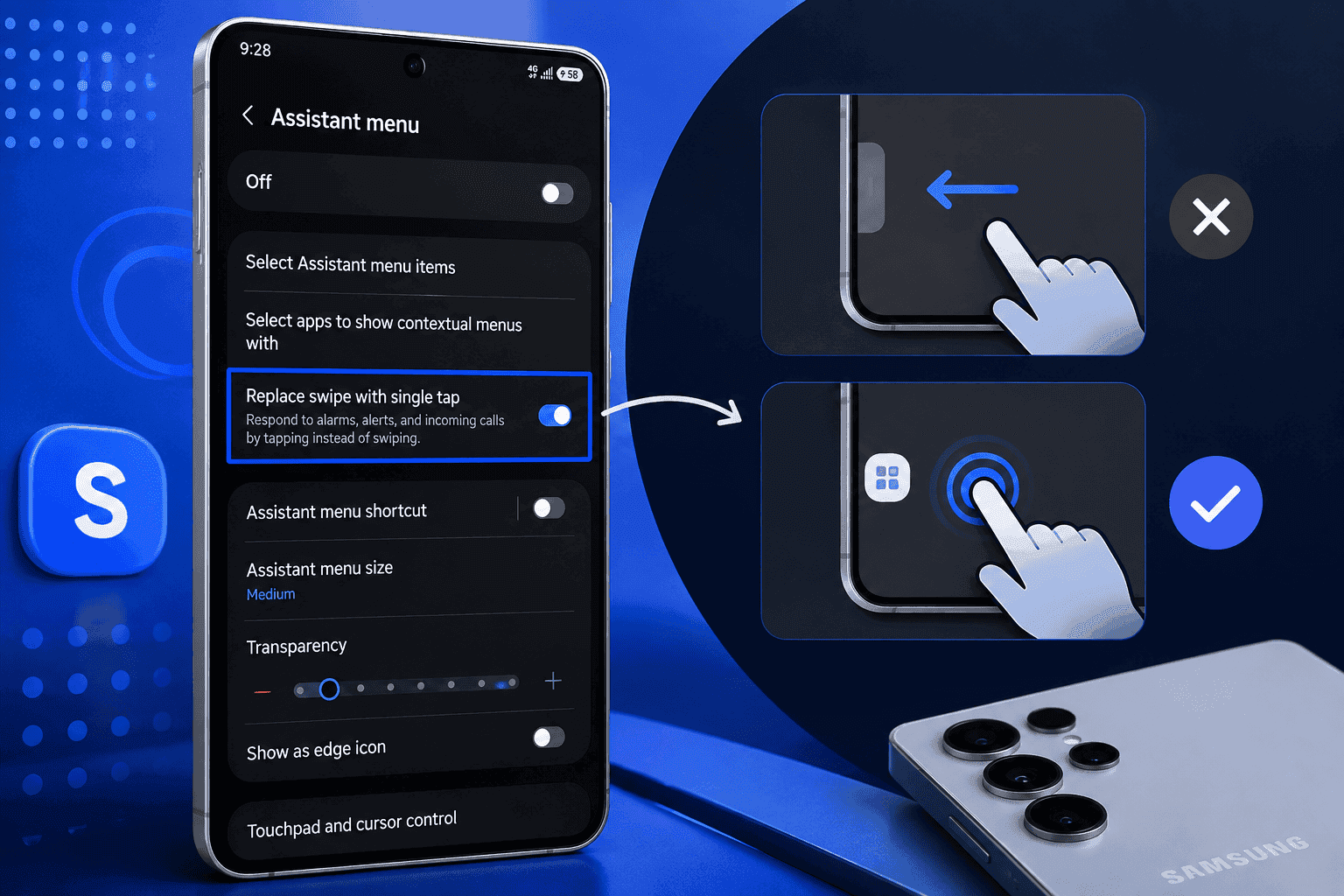
Samsung buried one of its most useful accessibility toggles two menus deep, and most Galaxy owners never find it. Replace swipe with single tap turns swipe-to-answer and alarm dismissal into a plain button press. The toggle moved in One UI 9, so older guides point you to a menu that no longer exists.
Key Takeaways
- One UI 9 puts the switch directly under Settings, Accessibility, Interaction and dexterity. One UI 8.5 and older builds hide the identical switch one level deeper, inside the Assistant menu screen.
- The setting covers system alert gestures such as call answering and alarm dismissal. Navigation gestures, notification swipes, and third-party call screens keep working exactly as they did.
- A second, narrower control lives in Answering and ending calls. Use it when you want tap answering for calls and swipe dismissal for alarms.
- Tap answering trades gesture friction for accidental input. A pocket press answers a call far more easily than a pocket swipe ever did.
What Replace Swipe With Single Tap Actually Changes on One UI
The toggle converts Samsung's path-based gestures into single-point taps inside the system interface. Your finger no longer needs to travel a straight line at a minimum speed. A press on the icon completes the action.
Samsung files this under accessibility rather than navigation, and that classification matters. The switch sits beside Touch and hold delay and Ignore repeated touches, both aimed at users with limited dexterity. The W3C draws the same line in its guidance on single-pointer operation, which treats a swipe as a path-based gesture that needs a tap alternative.
Gestures the toggle converts
- Incoming calls answer and reject on one press of the green or red icon. The drag arc across the lock screen disappears completely.
- Alarms snooze and dismiss on a tap instead of a drag to the screen edge. Samsung applies this inside its own Clock app.
- Timer alerts and system alarm-style notifications accept a press. These are the alerts Samsung renders full screen over your lock screen.
Gestures the toggle ignores
- Navigation gestures stay untouched. Swipe up for home and swipe in from either edge for back behave the same way after you flip the switch.
- Notification dismissal still needs a horizontal swipe. Samsung treats notification cards as list items, not as alert responses.
- Third-party calling apps draw their own answer screens. WhatsApp, Telegram, and Microsoft Teams follow their own rules no matter what you set here.
WARNING: This toggle does not remove swipe support. It adds tap as the accepted input for supported actions, so a swipe on the answer icon usually keeps working.
Requirements Before You Change One UI Accessibility Settings
Check your software version first, because the menu path depends on it. Open Settings, tap About phone, tap Software information, and read the One UI version line.
- One UI 9 on Android 17 exposes the toggle directly under Interaction and dexterity. Samsung shipped that layout with the Galaxy S26 beta in May 2026.
- One UI 8.5 and One UI 8 keep the same control inside the Assistant menu screen. The row reads Replace swipe with single tap once you open it.
- One UI 6.1.1 and older builds route call answering through the Phone app. Samsung documents that path in its own one tap call answering guide.
- Tablets follow the phone layout. A Galaxy Tab running One UI 8.5 shows the identical Assistant menu route.
No Good Lock module plays any part here. Home Up, MultiStar, and the rest of the suite sit outside this setting entirely.
Not sure your device will land on the newer layout? Our breakdown of One UI 9 eligible devices lists which Galaxy models Samsung has lined up.
Step-by-Step: Replace Swipe With Single Tap on One UI 9 and One UI 8.5
One UI 9: the direct route
Step 1. Open Settings and scroll down to Accessibility
The Accessibility entry sits between Lock screen and security and General management on most builds. Tap it.
Step 2. Tap Interaction and dexterity
This screen groups every touch-behavior control Samsung offers. You will see Universal switch, Assistant menu, and Touch and hold delay listed here.
Step 3. Turn on Replace swipe with single tap
The toggle appears as its own row on One UI 9. Flip it and the change applies immediately with no restart.
Step 4. Trigger a test alert before you rely on it
Set an alarm one minute ahead and dismiss it with a single press. That confirms the setting reached the Clock app.
One UI 8.5 and older: the Assistant menu route
Step 1. Open Settings, tap Accessibility, then Interaction and dexterity
The path starts identically on both versions. The difference appears one screen later.
Step 2. Tap Assistant menu
Samsung nests the toggle inside this screen on One UI 8.5 and earlier. Ignore the floating assistant icon controls at the top.
Step 3. Scroll to the bottom and turn on Replace swipe with single tap
The switch sits below the assistant icon options. Turning it on does not force the floating icon to appear.
Step 4. Back out of the menu to save
One UI writes the change as soon as you leave the screen. No confirmation prompt appears.
PRO TIP: Type "single tap" into the Settings search bar at the top of the Settings app. Samsung surfaces the exact row on both versions and saves you the menu hunt.
Calls only: the Answering and ending calls route
Step 1. Open the Phone app and tap the three-dot menu
The menu sits at the top right corner beside the search field.
Step 2. Tap Settings, then Answering and ending calls
This screen also lives under Accessibility, Interaction and dexterity, so either route lands you in the same place.
Step 3. Turn on the tap-to-answer option
Samsung labels this differently across regions and carrier builds. Look for wording that mentions a single tap or tapping to answer.
Step 4. Leave the global toggle off
Alarms keep their swipe dismissal this way. You get tap answering without changing every other alert on the phone.
Every Way to Answer a Galaxy Call, Compared
| Method | Where you turn it on | Works with the screen off | Main limitation |
|---|---|---|---|
| Swipe the answer icon | On by default, nothing to enable | Yes | Wet, greasy, or gloved fingers break the swipe path |
| Replace swipe with single tap | Accessibility, Interaction and dexterity | Yes | Also changes alarm and alert gestures across One UI |
| Tap to answer in the Phone app | Phone, Settings, Answering and ending calls | Yes | Covers calls only, alarms keep the drag |
| Volume up key to answer | Phone, Settings, Answering and ending calls | Yes | A pocket press answers a call with no warning |
| Auto answer on a headset | Answering and ending calls, Auto answer | Yes | Needs a paired Bluetooth headset or car system |
The table exposes the real decision. Which matters more to you, answering faster with damp hands or never answering a call by accident?
Common Tap to Answer Problems and How to Fix Them
Problem: The Replace swipe with single tap row is missing under Interaction and dexterity
Cause: Your device runs One UI 8.5 or older, where Samsung nests the switch inside the Assistant menu screen.
Fix:
- Open Settings and tap Accessibility.
- Tap Interaction and dexterity.
- Tap Assistant menu.
- Scroll to the bottom and turn on Replace swipe with single tap.
- Search the exact phrase in the Settings search bar if the row still refuses to appear.
Problem: Alarms dismiss with a tap, calls still demand a swipe
Cause: The Phone app stores its own answering preference, and on several carrier builds that preference wins over the accessibility toggle.
Fix:
- Open the Phone app and tap the three-dot menu.
- Tap Settings, then Answering and ending calls.
- Turn on the single tap answering option.
- Restart the phone so the dialer reloads its stored preference.
Problem: Your Galaxy answers calls inside your pocket
Cause: A tap needs far less intent than a swipe, so a knee, a car seat, or a case flap can hit the answer button.
Fix:
- Turn the global toggle off and keep the call-only setting instead.
- Open Settings, tap Display, and confirm Accidental touch protection is on.
- Remove magnetic wallet cases that press against the panel.
- Switch to the volume up key method if pocket answers continue.
Problem: WhatsApp and Teams calls still require a swipe
Cause: Those apps render their own incoming call screen, and Samsung's accessibility settings never reach app-drawn interfaces.
Fix:
- Unlock the screen first and answer from the heads-up notification, which already uses tap buttons.
- Open Settings, tap Apps, pick the app, tap Notifications, and keep call alerts set to pop-up style.
- Check the app's own call settings, since Samsung has no control over that screen.
Samsung's broader accessibility settings documentation confirms the boundary. These controls govern One UI surfaces, not third-party ones.
Tips and Pro Moves for One UI Gesture Replacement
I ran the same test on two devices, a Galaxy S25 Ultra on One UI 8.5 and a Galaxy S26 on One UI 9. Twenty calls each with damp fingers, half swiped and half tapped. The swipe missed six times, the tap missed none, and a week of pocket carry produced two accidental answers.
That second number is the part competing guides never mention. How many dropped-into-a-call moments would you accept in exchange for reliable wet-hand answering?
- Map the accessibility shortcut to your volume keys so you can flip the setting fast. Open Accessibility, tap Accessibility shortcuts, and assign the shortcut to Interaction and dexterity controls.
- Pair the toggle with Ignore repeated touches when tremor causes double answers. Both switches live on the same Interaction and dexterity screen and stack cleanly.
- Skip Modes and Routines for this one. Samsung does not expose the toggle as a routine action on current builds, so scheduled switching is off the table.
- Treat the Settings search bar as your real navigation tool for buried One UI switches. It survives Samsung's habit of relocating rows between versions, which is exactly what happened here.
Samsung moves accessibility rows more often than most people realize, and the same is true of other buried One UI controls. Our walkthrough on how to turn on Secret mode in Samsung Browser follows the same pattern of a useful switch hidden behind an unexpected menu.
Frequently Asked Questions About Replace Swipe With Single Tap
Q: How do I answer calls with one tap on Samsung?
A: Open Settings, tap Accessibility, tap Interaction and dexterity, and turn on Replace swipe with single tap. On One UI 8.5 and older, open the Assistant menu screen first and find the switch near the bottom. You can also limit the change to calls through Answering and ending calls.
Q: Where is Replace swipe with single tap in One UI 9?
A: One UI 9 lists the toggle as its own row under Settings, Accessibility, Interaction and dexterity. Samsung promoted it out of the Assistant menu screen, which is why older tutorials send you to the wrong place. Searching "single tap" in the Settings search bar opens the row directly.
Q: Does this setting change my navigation gestures?
A: No. Swipe up for home, swipe from the edge for back, and swipe up and hold for recents all keep working normally. The setting only affects alert-style actions such as answering calls and dismissing alarms.
Q: Will tap to answer cause accidental answered calls?
A: It raises the risk, and Samsung does not warn you about it. A tap takes less deliberate movement than a swipe, so pocket contact and case flaps can trigger it. Keep Accidental touch protection on and consider the call-only setting rather than the global toggle.
Q: Do I need Good Lock to remove swipe gestures on my Galaxy?
A: No. Replace swipe with single tap ships inside One UI as a stock accessibility control, and no Good Lock module touches it. You need no third-party app and no root access.
Q: Does the setting work on a Galaxy Tab?
A: Yes, tablets running One UI 8 or newer follow the same path. Tap answering matters less on a tablet, though alarm and timer dismissal benefits the same way.
Where to Take Your Galaxy Accessibility Setup Next
Set an alarm for two minutes from now and dismiss it with a single press. That one test tells you whether Replace swipe with single tap actually reached your Clock app, and it takes less time than reading another guide.
Give it a week of normal carry before you decide. Count the accidental answers, then choose between the global toggle and the narrower call-only option based on what you saw. If you are already deep in One UI settings, our guide on how to fix Samsung Keyboard suggesting wrong words tackles another setting most Galaxy owners never touch.
Which One UI version are you running, and did the toggle sit where this guide said it would? Drop your model and build number in the comments and I will tell you which route applies to your device.




Responses (0 )