
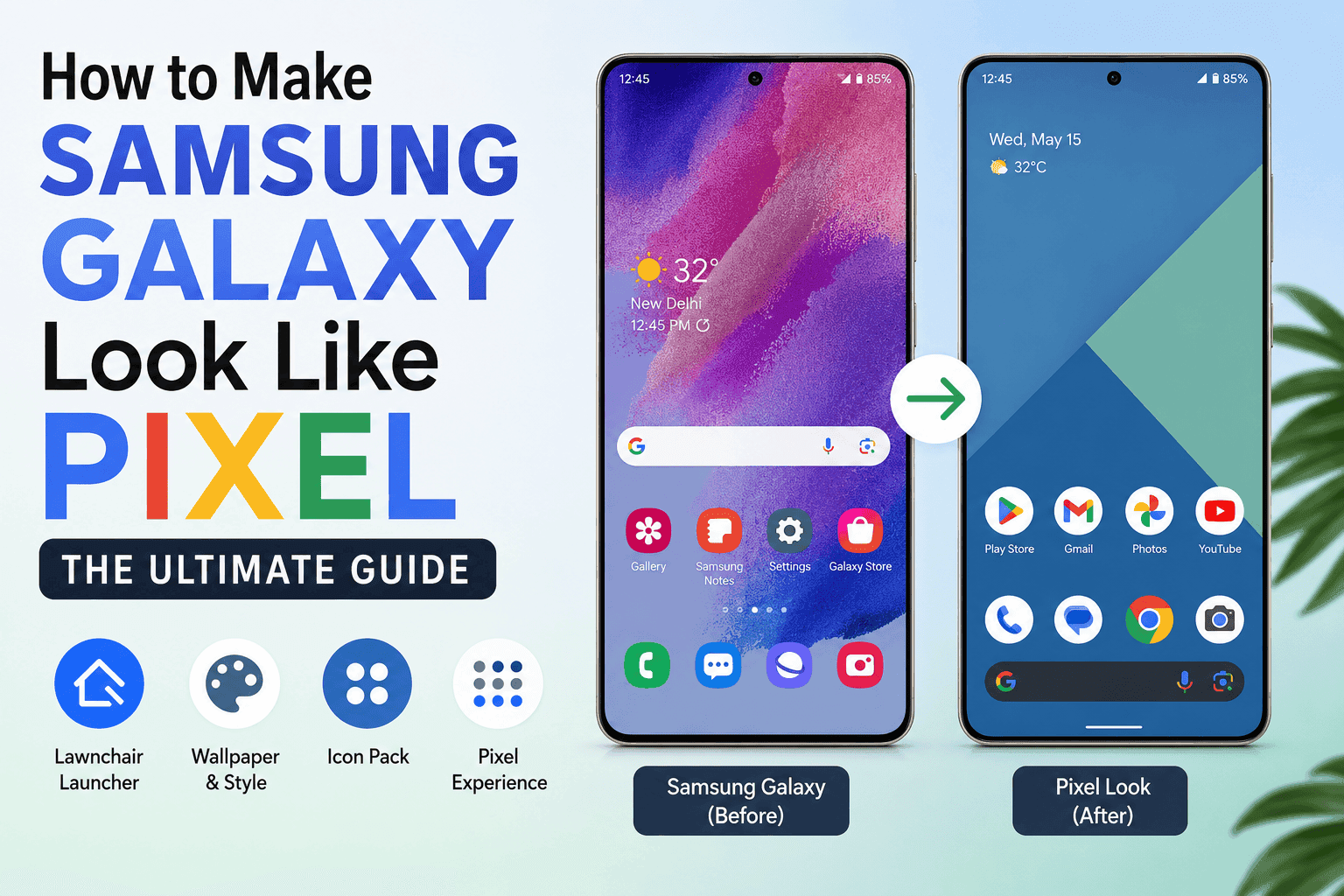
Pixel phones ship with a cleaner home screen and calmer color palette than most Galaxy devices. This guide shows how to make Samsung Galaxy look like Pixel without rooting or flashing a custom ROM. It covers the launcher, wallpaper, icons, widgets, notification panel, sounds, and keyboard swaps that get you there.
Key Takeaways
Here's the fastest way to make Samsung Galaxy look like Pixel, broken into the four moves that matter most.
- A Pixel-style launcher like Lawnchair changes your home screen layout, search bar placement, and app drawer grid to match Pixel's default spacing and feel.
- Turning on the Material You color palette under Wallpaper and Style pulls accent colors directly from your chosen wallpaper into icons and widgets.
- Good Lock's QuickStar module can combine your split notification and Quick Settings panels into the single unified panel Pixel phones use by default.
- None of these changes require root access or a modified bootloader, so your warranty and Knox security status stay fully intact throughout the process.
What It Means to Make Samsung Galaxy Look Like Pixel
One UI and stock Android share the same Android core underneath the skin. Samsung layers its own launcher, icon shapes, and notification design on top of that core. Swapping those layers back toward stock Android is how you make Samsung Galaxy look like Pixel.
You keep One UI features like Samsung DeX and Knox security the whole time. Nothing here touches your camera hardware or battery chemistry. The changes are cosmetic, and every one of them is reversible.
What You Need Before You Start
You need a Galaxy phone running One UI 6 or newer, based on Android 14 or later. Older One UI versions lack the Wallpaper and Style color extraction menu this guide relies on.
Set aside roughly 150MB of free storage for the launcher, icon pack, and widget apps. You also need a Google account signed in on the Play Store.
WARNING: Some Good Lock modules and icon packs are not available in every country's Play Store. Check availability before you plan your whole setup around one app.
Step-by-Step: How to Make Samsung Galaxy Look Like Pixel
Installing a Pixel-Style Launcher
Lawnchair is a free, open source launcher built to copy the Pixel Launcher layout, down to the search bar placement.
Step 1. Install Lawnchair from the Play Store.
Search "Lawnchair" and tap Install. No sign-in or extra permissions are required at this stage.
Step 2. Set Lawnchair as your default home app.
Go to Settings > Apps > Choose default apps > Home app and select Lawnchair.
Step 3. Open Lawnchair settings and enable the Google feed.
Swiping right from the home screen now opens Discover, matching Pixel behavior.
Step 4. Set the app drawer grid to 4 columns by 6 rows.
This spacing mirrors what Pixel phones use straight out of the box.
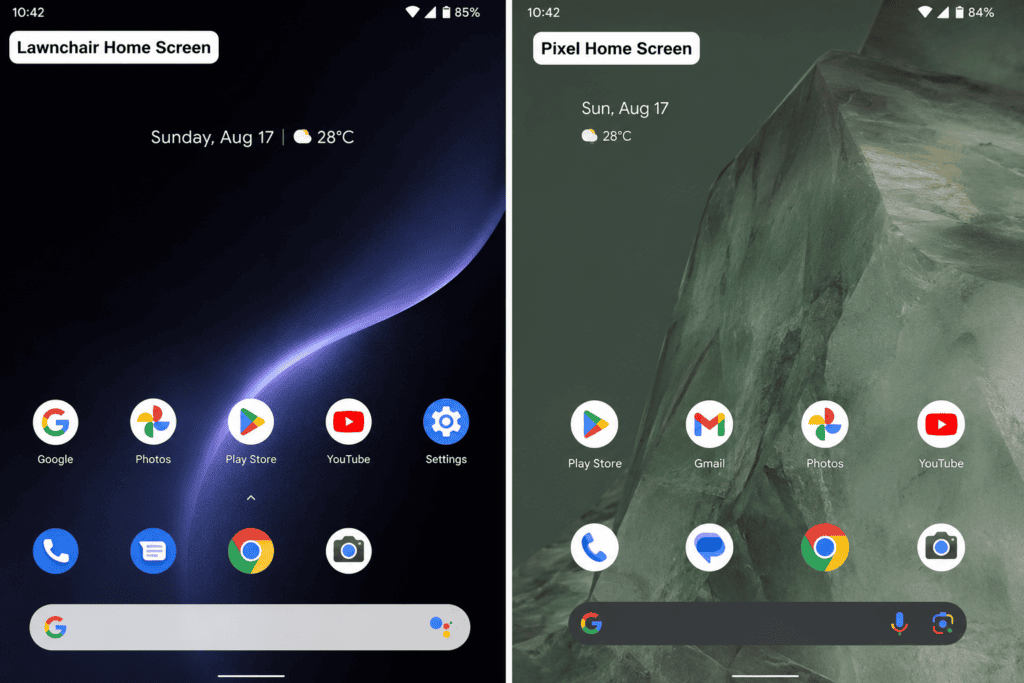
Lawnchair home screen next to a Pixel home screen for comparison
PRO TIP: Nova Launcher is a strong paid alternative if you want deeper gesture controls than Lawnchair offers. Lawnchair's source code is public on GitHub, so you can review what permissions it requests before installing anything.
Setting the Wallpaper and Material You Color Palette
Pick a wallpaper with two or three bold, solid colors for the cleanest result. Google's own Material 3 color extraction documentation explains how the system pulls hex values directly from an image.
Step 1. Choose a wallpaper with bold, simple color blocks.
Busy or gradient-heavy photos tend to produce muddy accent colors after extraction.
Step 2. Go to Settings > Wallpaper and Style.
Scroll down until you see the Color Palette toggle.
Step 3. Turn on Color Palette and Apply Palette to App Icons.
Choose a wallpaper-based color rather than a basic color for the closest Pixel match.
Step 4. Reload the launcher if colors don't update right away.
Long-press the home screen, open Lawnchair settings, and tap Reload.
Do your accent colors look muddy after you apply the palette? Switch to a simpler wallpaper with two or three solid tones instead.
Adding a Pixel Icon Pack
Lawnchair supports third-party icon packs, so round Pixel-style icons install in a few taps.
Step 1. Search the Play Store for a Pixel-style icon pack.
Circular, monochrome-friendly packs match the default Pixel Launcher shape most closely.
Step 2. Open Lawnchair settings and tap Icon Pack.
Select the pack you just installed from the list.
Step 3. Adjust icon size under Lawnchair's Look and Feel menu.
A slightly larger icon size closes the visual gap with Pixel's grid spacing.
WARNING: Icon packs only cover apps their developer has manually mapped. Unmapped apps keep their original icon until the pack gets an update.
Building Pixel-Style Widgets
Pixel's At a Glance widget and stacked weather widget are two of the most recognizable pieces of its home screen. You can also rename your Galaxy widgets so the labels match the minimal style Pixel widgets use.
Step 1. Long-press the home screen and tap Widgets.
Scroll to the Google app section for the At a Glance widget.
Step 2. Add the Google clock and weather widgets above your app dock.
This recreates the stacked widget layout Pixel phones use by default.
Step 3. Resize each widget by dragging its corner handles.
Match the width to your app dock for cleaner grid alignment.
| Launcher | Cost | Google Feed Swipe | Icon Shape Control | Best For |
|---|---|---|---|---|
| Lawnchair | Free | Yes | Yes | Closest free match to Pixel Launcher |
| Nova Launcher | Free or paid | Plugin required | Yes | Deeper gesture customization |
| Hyperion Launcher | Free | Yes | Yes | Simpler, lighter settings menu |
Unifying the Notification Panel
Samsung splits Quick Settings and notifications into two separate swipe-down panels by default. Pixel combines both into a single panel.
Step 1. Install Good Lock from the Galaxy Store.
Good Lock is Samsung's own official customization framework, so it carries no security risk.
Step 2. Open Good Lock and install the QuickStar module.
QuickStar controls Quick Settings and notification panel behavior specifically.
Step 3. In QuickStar, turn on the combined panel layout.
This merges Quick Settings and notifications into one swipe-down panel.
If your modules stop syncing after a software update, our Good Lock compatibility guide covers the current fix for that issue.
Swapping In Pixel Sounds and Ringtones
Pixel's default ringtone and notification tones sound noticeably different from One UI's built-in set.
Step 1. Open Settings > Sounds and Vibration.
Tap Ringtone or Notification Sound to browse the built-in library first.
Step 2. Download Pixel-style tones from a reputable sound pack app.
Save the files into the Ringtones or Notifications folder inside My Files.
Step 3. Set individual sounds per app for more distinction.
Our guide to setting a different notification sound for each app walks through this in more depth.
Switching to Gboard
Samsung Keyboard ships as the default input method on every Galaxy phone. Gboard is the keyboard every Pixel ships with instead.
Step 1. Install Gboard from the Play Store.
Open it once to complete the short setup wizard.
Step 2. Go to Settings > General Management > Keyboard List and Default.
Set Gboard as your default keyboard here.
Step 3. Customize Gboard's theme to match your new color palette.
Long-press the comma key and tap the paintbrush icon.
PRO TIP: If Gboard feels heavier on battery than Samsung Keyboard, HeliBoard is a lightweight open source alternative with a similar look. Our HeliBoard setup walkthrough covers the switch step by step.
Common Pixel-Style Setup Problems and How to Fix Them
These are the most common snags people hit when they try to make Samsung Galaxy look like Pixel.
Problem: The color palette doesn't change after I switch wallpapers.
Cause: One UI caches the previous palette until the launcher reloads it.
Fix:
- Long-press the home screen and open launcher settings.
- Tap Reload or Restart Launcher.
- Reboot the phone once if the palette still hasn't updated.
Problem: Good Lock modules disappear after a One UI software update.
Cause: Samsung ties each module to a specific One UI build, and updates can break that link.
Fix:
- Open the Galaxy Store and check for Good Lock updates.
- Reinstall the QuickStar module if it's missing from your module list.
- Restart the phone after reinstalling.
Problem: The icon pack only applies to some of my apps.
Cause: Icon pack developers map icons manually, and new or less common apps often go unmapped.
Fix:
- Open the icon pack app and check its supported app list.
- Request the missing app through the developer's in-app feedback form.
- Use Lawnchair's custom icon picker to manually assign a close match meanwhile.
Tips and Pro Moves for a More Convincing Pixel Look
Swapping Samsung's default apps for Google's versions closes more of the visual gap than most guides mention. Go to Settings > Apps > Default Apps and switch Messages, Phone, and Calendar to their Google equivalents where available.
A ported Google Camera app can add Pixel-style photo processing on some Galaxy models. Results vary by chipset, so test it on a handful of photos before you rely on it for anything important, since some ports crash on newer Exynos and Snapdragon hardware.
For a deeper look at how Samsung's Material You colors have changed over several One UI generations, Android Police's write-up on making Galaxy phones feel more like Pixel devices is worth reading.
Frequently Asked Questions About Making a Samsung Galaxy Look Like a Pixel
Q: Can I make Samsung Galaxy look like Pixel without rooting?
A: You can get very close without rooting, using a custom launcher, icon pack, and Good Lock modules. Full pixel-perfect fonts and system animations still require root access. Most users find the non-root result close enough for daily use.
Q: Will installing a Pixel-style launcher void my Samsung warranty?
A: No. Installing apps from the Play Store, including launchers, does not affect your Samsung warranty. Warranty issues only come up with a modified bootloader or a rooted device.
Q: Why doesn't my notification panel look like a Pixel's after enabling Good Lock?
A: The QuickStar module often needs its own update, separate from the main Good Lock app. Check the Galaxy Store specifically for a QuickStar update before troubleshooting further.
Q: Does using Gboard instead of Samsung Keyboard drain more battery?
A: Gboard uses slightly more background resources than Samsung Keyboard on some models. The difference is usually small enough that most people won't notice it during a normal day.
Q: Can I get the Pixel camera look on my Galaxy phone?
A: Ported Google Camera apps bring some Pixel-style photo processing to select Galaxy models. Results depend heavily on your exact chipset, so test a port before trusting it for important shots.
Q: Do these steps work on older Galaxy phones running One UI 5?
A: Most launcher and icon pack steps work fine on One UI 5. The Material You color palette toggle specifically needs One UI 6 or later on Android 14.
Where to Take Your Pixel-Style Setup Next
You've now covered every step to make Samsung Galaxy look like Pixel, from the home screen down to the keyboard. Test the setup for a few days before adding more modules on top of it.
If you want to keep tweaking One UI beyond the visual layer, our guide on replacing swipe gestures with single taps is a natural next step.
Which part of the Pixel look are you trying to nail first, the launcher or the notification panel? Drop your setup questions in the comments below.



Responses (0 )