
Samsung Keyboard gives you a smooth Galaxy experience, but it also keeps your typing tied to Samsung’s software layer. HeliBoard offers a local, open-source replacement with dictionaries, layouts, clipboard history, themes, and no internet permission. This guide explains the setup, the hidden catch with swipe typing, and the Samsung-specific failure that can lock you out after a reboot.
What HeliBoard Is and Why Samsung Users Should Care
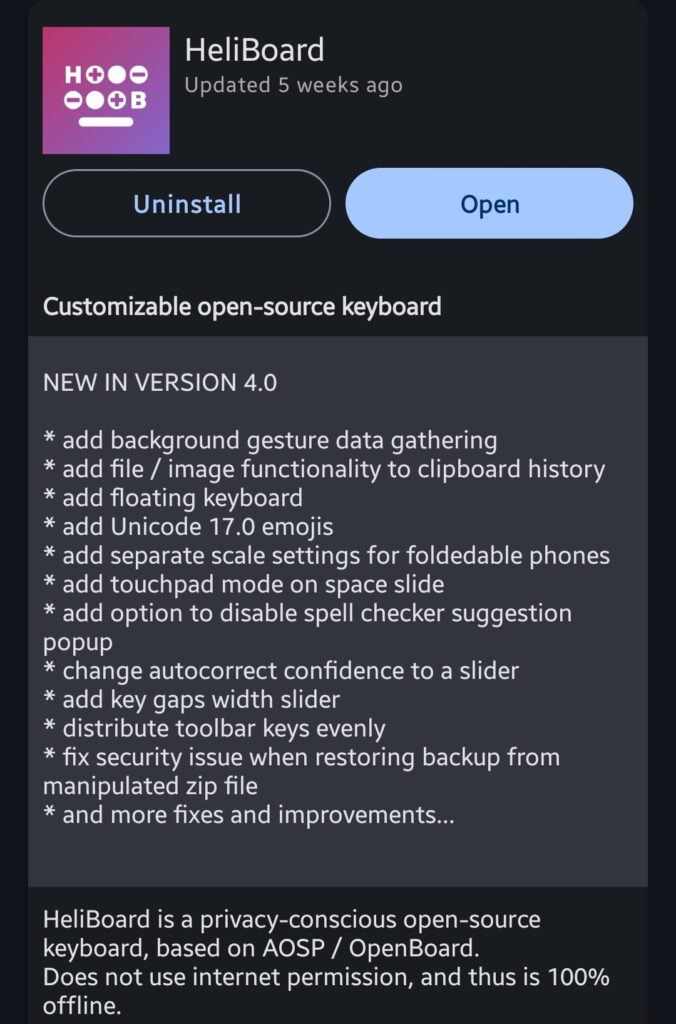
HeliBoard is an open-source Android keyboard based on AOSP Keyboard and OpenBoard. The project publishes its code under the GNU General Public License version 3.0 on .
The keyboard does not request internet access. Its suggestions, spell checking, learned words, and layout controls work locally on your device.
That design solves one clear problem. Your keyboard does not need network access to type a text message, password, or search query.
HeliBoard supports:
- Custom themes with colors and background images.
- Day and night themes on Android 10 and newer.
- Dynamic colors on Android 12 and newer.
- Multiple languages and layouts.
- Custom symbol, number, and function layouts.
- Clipboard history.
- One-handed mode.
- Split keyboard layouts.
- Number-pad layouts.
- Backup and restore for settings, learned words, and history.
- Emoji search through an optional emoji dictionary.
- Gesture typing through an additional library.
The privacy benefit needs careful wording. HeliBoard does not use internet permission, but Android still grants optional access to contacts and user dictionaries.
You can deny contact access if you do not want contact names to influence suggestions. You can also avoid importing dictionaries that contain words you do not need.
The project has more than 5,000 GitHub stars and hundreds of open issues. That activity shows real development, but it also means you should check the current release before reporting a problem.
HeliBoard’s Biggest Catch
HeliBoard does not include an open-source gesture-typing library. You need to load a compatible library if you want swipe typing.
The project documents this limitation clearly. You can download a compatible libjni_latinimegoogle.so file and load it through HeliBoard’s advanced settings.
That step may discourage people who expect Gboard-style swipe typing immediately. If you type by tapping, HeliBoard works without this extra file.
HeliBoard Compared With Samsung Keyboard and Gboard
| Feature | HeliBoard | Samsung Keyboard | Gboard |
| Internet permission | No | Depends on Samsung services and configuration | Uses network-connected features |
| Open-source code | Yes | No | No |
| Samsung theme support | Basic Android keyboard controls | Deep One UI integration | Google-focused styling |
| Clipboard history | Yes | Yes | Yes |
| Swipe typing | Requires an external library | Built in | Built in |
| Custom layouts | Extensive | Limited | Limited |
| Emoji search | Requires an emoji dictionary | Built in | Built in |
| Samsung Pass integration | No | Yes | No |
| Offline typing | Yes | Core typing works offline | Core typing works offline |
| Backup method | HeliBoard backup file | Samsung account features | Google account features |
The choice depends on your priorities. HeliBoard fits Galaxy owners who value local processing and layout control more than Samsung Pass or built-in swipe typing.
Do you want your keyboard to match One UI perfectly, or do you want to control what it can access? That answer determines whether HeliBoard suits your phone.
Requirements Before You Start
HeliBoard runs on Android 5.0 and newer. A current Galaxy phone running One UI 6, One UI 7, One UI 8, or later meets that requirement.
Download it from F-Droid or the project’s .
F-Droid recommends using its client because direct APK downloads do not provide update notifications. The F-Droid listing also provides build metadata and reproducibility information.
Before switching keyboards, prepare these items:
- Keep Samsung Keyboard enabled as a backup.
- Charge your phone if you plan to test reboot behavior.
- Confirm your Samsung account recovery options.
- Export important HeliBoard settings after setup.
- Download dictionaries only from trusted project links.
Samsung phones require extra care because Android may demand your lock-screen password after a restart. A reported Galaxy S24 issue showed HeliBoard failing to appear during first unlock after boot.
WARNING: Keep Samsung Keyboard enabled until you complete a restart test. A keyboard failure at the lock screen can block access to your phone.
HeliBoard also requests contact and user-dictionary permissions. Those permissions support better suggestions, but the app can work without contact access.
Step-by-Step Instructions for Installing HeliBoard on Samsung
Step 1. Install HeliBoard from a trusted source
Open the F-Droid HeliBoard page and install the F-Droid client.
Search for HeliBoard inside F-Droid. Confirm the package name helium314.keyboard before installing.
The project also publishes APK releases through GitHub. F-Droid remains the simpler choice for update checks.
Step 2. Open HeliBoard and choose your languages
Launch HeliBoard after installation. The setup screen should guide you toward enabling the keyboard and selecting languages.
Open HeliBoard Settings, then choose Languages and layouts.
Select each language you use. Download or import dictionaries when HeliBoard offers them.
Do not enable every available language. Extra dictionaries can add irrelevant suggestions and make language switching harder.
Step 3. Enable HeliBoard in Samsung’s keyboard menu
Open Settings on your Galaxy phone.
Choose General management, then Keyboard list and default.
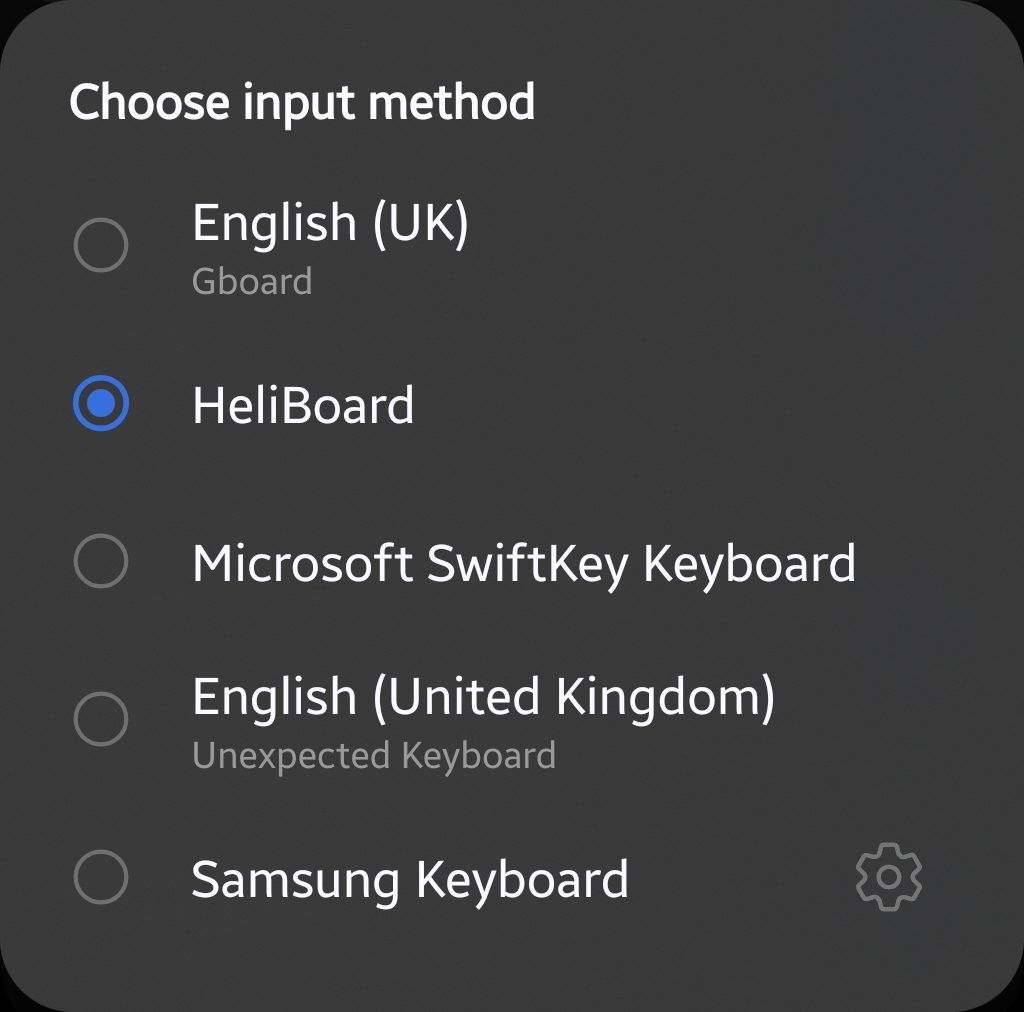
Turn on HeliBoard in the available keyboards list. Accept Android’s warning after reviewing the app’s permissions.
Tap Default keyboard, then choose HeliBoard.
Samsung may show a keyboard button in the navigation area. Leave it enabled during testing so you can switch back quickly.
Step 4. Configure the keyboard height and layout
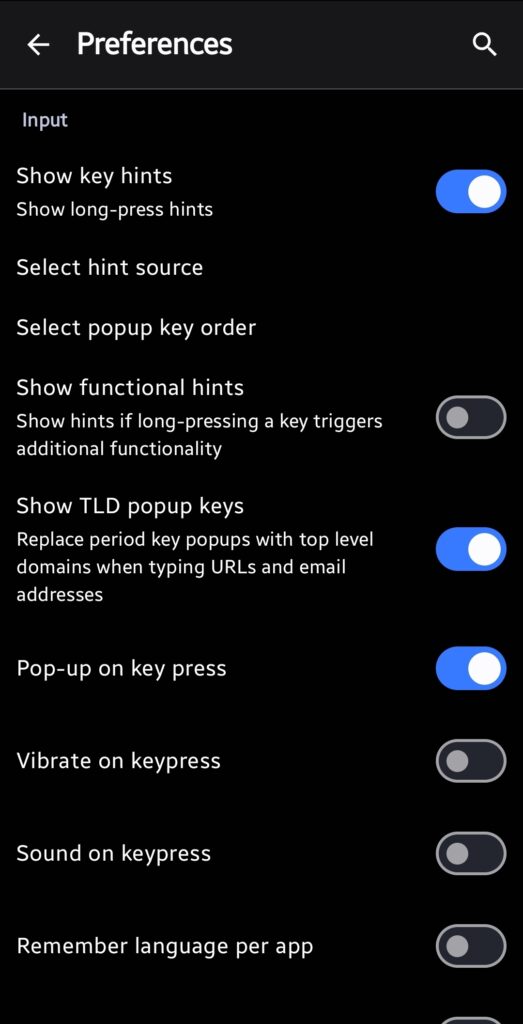
Open HeliBoard Settings, then choose Preferences.
Adjust the keyboard height, key spacing, number row, vibration, and popup behavior.
Galaxy phones often use tall displays with narrow keyboard areas. Increase the keyboard height if you make frequent lower-row mistakes.
Enable the number row if you enter prices, dates, legal citations, or product codes often.
Step 5. Set up themes and Samsung-friendly colors
Open HeliBoard Settings, then choose Theme.
Select a preset or open the color controls. You can use a background image or match your Galaxy’s dark mode.
Dynamic colors require Android 12 or newer. Samsung’s color palette can change after you alter the wallpaper, so review the keyboard afterward.
Keep the contrast high. A stylish keyboard that hides punctuation creates more mistakes than it prevents.
Step 6. Add dictionaries and emoji search
Open HeliBoard Settings, then select Languages and layouts.
Choose a language and install its dictionary from a trusted source. Open the emoji dictionary option if you want inline emoji search.
HeliBoard’s project notes that Korean suggestions need the correct dictionary. Generic dictionary tools do not create working Korean dictionaries.
Test names, abbreviations, and professional terms after installing a dictionary. A dictionary can improve suggestions for one language and create noise in another.
Step 7. Configure clipboard history
Open the keyboard in any text field. Tap the toolbar menu, then choose Clipboard.
Pin entries you reuse often. Remove passwords, payment details, and private messages from the clipboard history.
HeliBoard supports backup and restore for history data. Treat that backup file like sensitive information because it may contain copied text.
PRO TIP: Create a clean clipboard before testing HeliBoard. Old Samsung Keyboard entries can make the new keyboard appear more accurate than it really is.
Step 8. Test HeliBoard before removing Samsung Keyboard
Type inside Samsung Messages, Samsung Internet, Gmail, and a password field.
Check punctuation, autocorrect, cursor movement, emoji search, and language switching.
Restart the phone after testing ordinary apps. Enter your lock-screen password once Samsung completes the reboot.
Switch back to Samsung Keyboard if HeliBoard does not appear. You can return to Settings, General management, Keyboard list and default, and Default keyboard.
Adding Swipe Typing Without Giving Up HeliBoard
HeliBoard’s swipe typing requires a separate library. The project does not bundle one because no compatible open-source library currently meets its needs.
Download a compatible library from a trusted source listed by the HeliBoard project. Choose the file that matches your phone’s CPU architecture.
Most recent Galaxy phones use arm64-v8a. Older devices may use armeabi-v7a.
Step 1. Check your device architecture
Open the HeliBoard swipe-typing instructions from its official documentation.
Match the library architecture with your phone. Do not install an arbitrary file because Android may reject it.
Step 2. Load the gesture library
Open HeliBoard Settings.
Choose Advanced, then Load gesture typing library.
Select the downloaded .so file from your file manager.
Restart HeliBoard after the library loads. Open a text field and swipe across several short words.
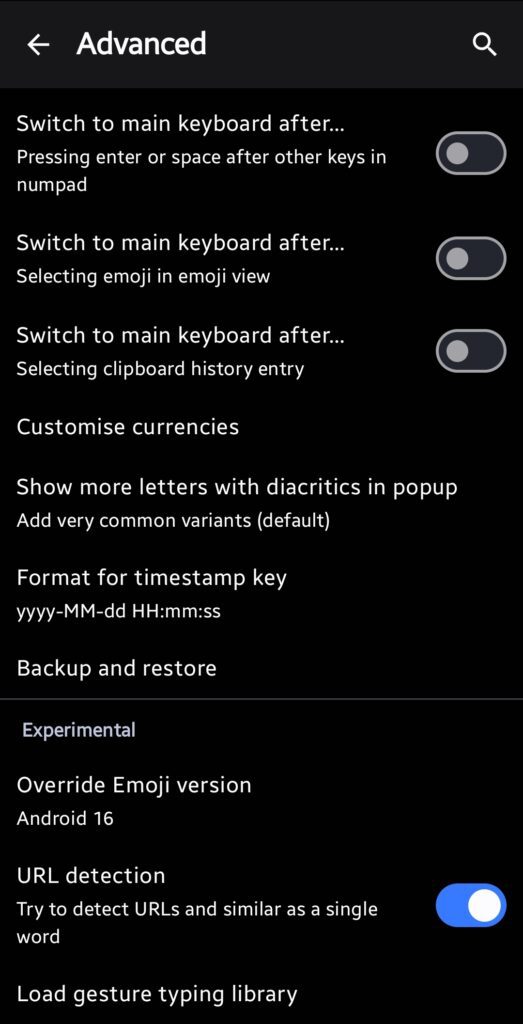
Swipe typing quality depends on the library, language dictionary, and your typing habits. HeliBoard does not promise the same predictions as Gboard.
If swipe typing matters more than local processing, Samsung Keyboard or Gboard may fit your needs better.
Common HeliBoard Problems and How to Fix Them
Problem: HeliBoard disappears after restarting a Samsung phone
Cause: Android may force the lock screen into a restricted input state after reboot. A reported Galaxy S24 issue showed HeliBoard failing during the first unlock.
Fix:
- Keep Samsung Keyboard enabled in Settings, General management, Keyboard list and default.
- Set Samsung Keyboard as the temporary default before restarting.
- Enter your lock-screen password after the phone boots.
- Switch back to HeliBoard after reaching the home screen.
- Repeat the test before relying on HeliBoard daily.
Do not remove Samsung Keyboard from the device. It serves as a recovery path if another keyboard fails.
Problem: HeliBoard does not appear in the default keyboard list
Cause: Android may not have enabled the input method after installation.
Fix:
- Open Settings.
- Choose General management.
- Tap Keyboard list and default.
- Turn on HeliBoard.
- Open Default keyboard.
- Select HeliBoard.
- Restart the app where you want to type.
A work-profile policy can also block third-party keyboards. Test HeliBoard in a personal app before changing work settings.
Problem: Swipe typing does nothing
Cause: HeliBoard does not include a gesture library in the app package.
Fix:
- Download a compatible gesture library from HeliBoard’s documented source.
- Confirm the file matches your CPU architecture.
- Open HeliBoard Settings.
- Select Advanced.
- Tap Load gesture typing library.
- Choose the
.sofile. - Test swipe typing in a plain text field.
The library may fail after an Android update. Check the project’s release notes before replacing the file.
Problem: Suggestions show strange words or miss familiar names
Cause: HeliBoard needs the right dictionaries and may not have access to your contacts.
Fix:
- Open HeliBoard Settings.
- Select Languages and layouts.
- Confirm the correct language dictionary.
- Open Android’s app permissions for HeliBoard.
- Allow contacts only if you want contact names in suggestions.
- Delete incorrect learned words from the personal dictionary.
- Test the keyboard after each change.
Read SammyGuru’s guide on fixing Samsung Keyboard suggestions if you need to compare learned-word behavior.
Problem: Emoji search returns no results
Cause: HeliBoard needs an emoji dictionary for search suggestions.
Fix:
- Open HeliBoard Settings.
- Choose Languages and layouts.
- Install the emoji dictionary.
- Return to a text field.
- Open the emoji or toolbar search option.
- Search for a common term such as “car” or “heart.”
The emoji font and dictionary can affect results. A missing dictionary does not mean the keyboard lacks emoji support.
Problem: Samsung Pass does not work with HeliBoard
Cause: Samsung Pass expects Samsung Keyboard for certain autofill and secure-entry features.
Fix:
- Switch to Samsung Keyboard before entering sensitive credentials.
- Complete the login or password entry.
- Return to HeliBoard from Default keyboard.
- Use HeliBoard for ordinary text fields.
Never treat HeliBoard as a full replacement for every Samsung input feature. Samsung’s ecosystem favors its own keyboard.
Tips and Pro Moves for Better HeliBoard Results
Use a separate dictionary for specialist terms
Legal names, medical terms, product codes, and company names often confuse general dictionaries.
Create or download a focused dictionary for your work. HeliBoard supports custom dictionary workflows through the project’s dictionary resources.
Test the dictionary with real sentences. A dictionary that contains isolated terms may produce poor phrase suggestions.
Build a backup before changing layouts
Open HeliBoard Settings, then choose Advanced and the backup option.
Save the backup file in a protected location. Avoid placing it in a shared folder or messaging app.
Create another backup after major changes. This gives you a clean rollback point when a theme or layout causes trouble.
Use one-handed mode on large Galaxy phones
Open the HeliBoard toolbar and select the one-handed keyboard option.
Move the keyboard toward your writing hand. This reduces thumb travel on Galaxy Ultra phones and large foldables.
Foldable owners can use separate scale settings where supported. Test the keyboard in both folded and open modes.
Use the space bar as a cursor control
HeliBoard supports cursor movement through space-bar gestures in supported layouts.
Slide across the space bar to reposition the cursor. This works faster than tapping between small characters.
Check the setting under Preferences if the gesture does not respond. RTL languages may use different cursor behavior.
Keep the toolbar small
A crowded toolbar slows down access to the keys you use most.
Place clipboard, emoji, settings, and voice input near the front. Remove tools you never open.
The toolbar has more value when it reflects your habits. Do not copy someone else’s arrangement without testing it for a day.
Watch battery and startup behavior
HeliBoard can run at startup because Android needs an available input method.
The F-Droid listing includes a startup permission. That permission does not give the keyboard internet access.
If your phone reports unusual battery activity, check Settings, Battery, and Background usage limits. Do not restrict HeliBoard aggressively because Android may close the keyboard.
Frequently Asked Questions About HeliBoard
Q: Is HeliBoard safe to use on Samsung phones?
A: HeliBoard publishes its source code and does not request internet permission. Samsung users should keep Samsung Keyboard enabled as a recovery option, especially after reboot testing.
Q: Does HeliBoard work on Android 15 and Android 16?
A: HeliBoard supports Android 5.0 and newer, so current Android versions meet its listed requirement. Check the latest release notes for device-specific fixes before installing a new Android update.
Q: Does HeliBoard have swipe typing?
A: HeliBoard supports swipe typing through an additional gesture library. You must load a compatible .so file through Settings, Advanced, and Load gesture typing library.
Q: Can HeliBoard replace Samsung Keyboard completely?
A: HeliBoard can replace Samsung Keyboard for ordinary typing, layouts, clipboard use, and local suggestions. Samsung Pass and some secure-entry features may work better with Samsung Keyboard.
Q: Does HeliBoard collect what I type?
A: HeliBoard does not use internet permission, so its normal typing features work locally. Optional contact and user-dictionary permissions can affect suggestions, so deny them if you do not need those features.
Q: How do I install HeliBoard on a Galaxy phone?
A: Install HeliBoard from F-Droid or its official GitHub release page. Enable it under Settings, General management, Keyboard list and default, then choose it under Default keyboard.
Q: Does HeliBoard support custom themes?
A: HeliBoard supports custom colors, background images, day and night themes, and dynamic colors on compatible Android versions. Open HeliBoard Settings, then select Theme.
Q: Does HeliBoard support Korean typing?
A: HeliBoard supports Korean layouts, but suggestions need the correct Korean dictionary. The project warns that generic dictionary tools may not create working Korean dictionaries.
Make the Switch Without Losing Your Way Back
HeliBoard solves the privacy problem by keeping keyboard functions on your Galaxy phone. Its strongest features include custom layouts, local dictionaries, clipboard controls, and open-source code.
The setup needs more care than Samsung Keyboard because swipe typing requires another library. Samsung owners also need a backup keyboard for lock-screen recovery and Samsung Pass.
Start with a one-day test. Keep Samsung Keyboard enabled, configure two languages, test a reboot, and review the permissions before making HeliBoard your daily keyboard.
For more Galaxy input fixes, use SammyGuru’s guide to stop Samsung Keyboard from suggesting wrong words. Ask your question in the comments with your Galaxy model, Android version, One UI version, and HeliBoard release.




Responses (0 )