

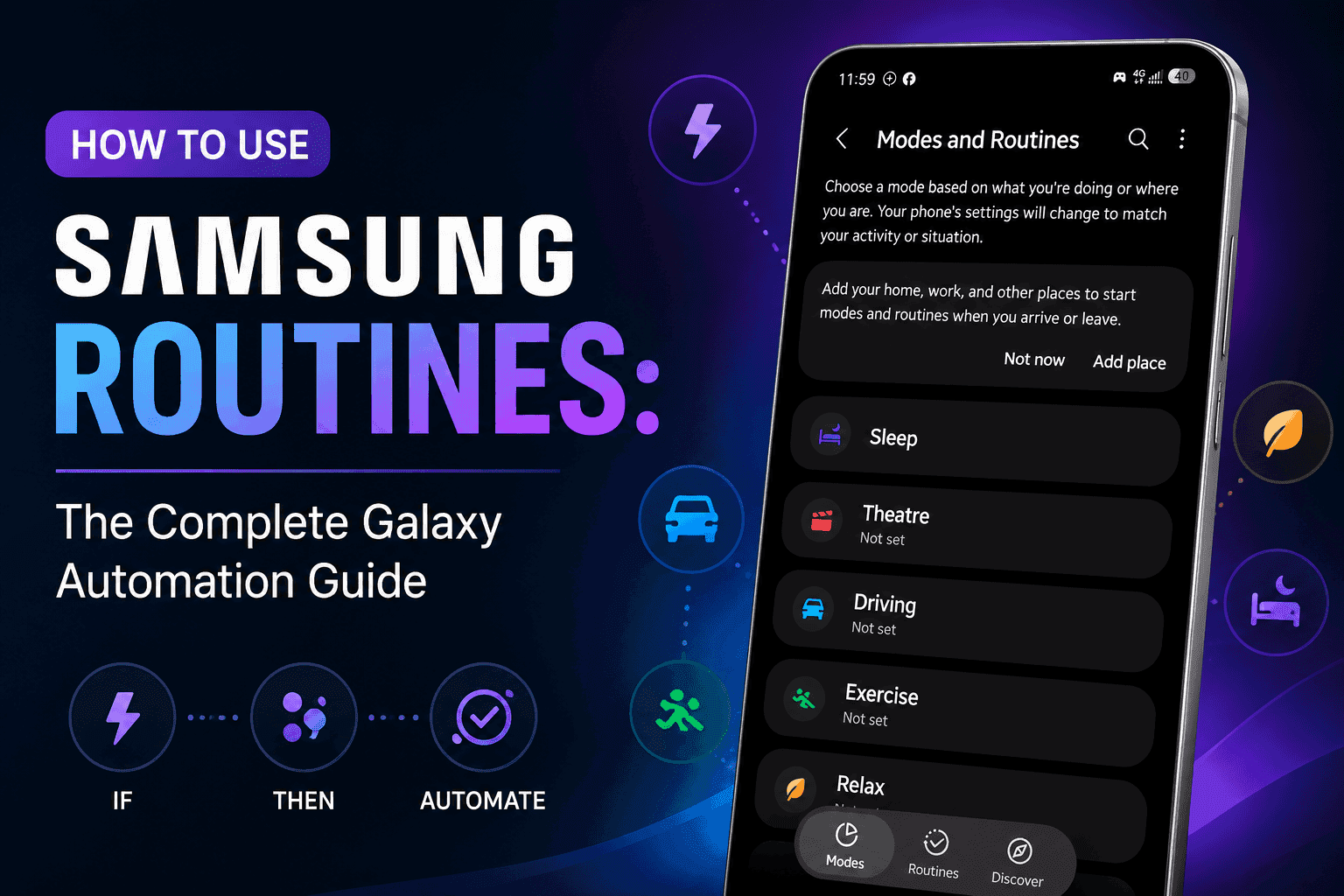
Most Galaxy owners never open the one preinstalled app that can run their phone for them. Samsung Routines automates charging behavior, work hours, sleep, mobile data, and Wi-Fi with zero third-party downloads. Below you get the exact tap paths, the version rules Samsung buries in its docs, and every way this feature breaks.
Key Takeaways
- Samsung ships the automation engine as Modes and Routines, and it lives both in the app drawer and inside Settings. Older Galaxy builds carried the same engine under the name Bixby Routines.
- Every routine uses an If condition and a Then action. You can stack several conditions and several actions inside one routine.
- Samsung's background app management puts unused apps to sleep after roughly three days, and that single behavior breaks more routines than any bug.
- Modes handle broad daily states such as Sleep or Driving. Routines handle narrow, specific triggers that Modes cannot express.
- Location and connectivity triggers depend on permissions most people set to the wrong option during setup.
What Samsung Routines Actually Do on a Galaxy Phone
Samsung Routines watches for a condition and changes your phone settings the moment that condition becomes true. Samsung's support documentation for Modes and Routines on Galaxy phones and tablets uses the commute example: arrive at work, mute notification sounds, switch Wi-Fi on.
The app runs as com.samsung.android.app.routines and updates through the Galaxy Store and Play Store independent of your firmware. The February 2026 build, version 5.0.01.52, requires Android 15 or newer and targets Android 16.
Your routine has two halves. The If half accepts time, place, Wi-Fi network, Bluetooth device, charging status, battery level, app in use, screen orientation, headphone connection, and roughly two dozen more signals. The Then half fires actions across sound, display, network, Bixby, and app launches.
Where Modes End and Routines Begin
Modes are Samsung's prebuilt daily states: Sleep, Work, Exercise, Driving, Relax. You pick a mode, adjust what it changes, and it turns on by schedule or by hand.
Routines carry no template and no assumptions. You define the trigger yourself, which makes them the right choice for anything conditional.
| Comparison point | Modes | Routines |
|---|---|---|
| What starts it | A schedule, a place, or a manual tap | Any single condition or combination of conditions you define |
| Setup time | Under a minute using Samsung's presets | Two to five minutes for a custom If and Then pair |
| Best use | Broad states such as sleeping, driving, or focusing | Narrow triggers such as battery under 20 percent or a specific app opening |
| Reverts settings | Yes, automatically when the mode turns off | Only when you enable the revert option per action |
| Stacking conditions | No | Yes, multiple If conditions per routine |
Requirements Before You Build Your First Routine
Your device needs Modes and Routines present in Settings. Samsung's India support page on how to use Routines on Galaxy devices confirms the split: Android 13 and 14 place the feature under Settings, and Android 11 and 12 devices use the older Bixby Routines app.
Sign in to your Samsung account before you build anything. Several triggers, including some place and Bixby actions, refuse to save without it.
Turn on the Customization Service if you want recommended routines based on your usage. You can skip it and still build routines by hand.
Location triggers need Location switched on under Settings, Location. Grant Modes and Routines the Allow all the time permission rather than the default while-in-use option.
WARNING: A routine that changes Do Not Disturb, alarms, or call settings can silence something you need. Test every new routine on a day when a missed alert costs you nothing.
How to Create a Samsung Routine Step by Step
The example below fires a single edge lighting flash whenever you plug your Galaxy phone into a charger. It teaches the full If and Then flow in under two minutes.
Step 1. Open Settings and tap Modes and Routines.
You can also launch the Modes and Routines app straight from your app drawer. Tap the three-dot menu inside the app to add that icon if it is missing.
Step 2. Switch to the Routines tab and tap the plus icon.
The plus sits at the top of the screen. Samsung drops you into an empty If and Then canvas.
Step 3. Tap "Add what will trigger this routine" under the If section.
Samsung groups triggers by category: Place, Time, Device, Sound and display, Apps, and more. The category names match the settings they control.
Step 4. Choose Device, then Charging status, then Wired and wireless charging.
Tap Done to lock the condition in. Your routine now waits for any charger connection.
Step 5. Tap "Add what this routine will do" under the Then section.
This screen lists every action available on your firmware. Some actions appear only on specific One UI versions.
Step 6. Select Effects, then Edge lighting effect once.
Pick the effect style and color on the next screen. Tap Done to confirm.
Step 7. Tap Done, then Save.
Samsung asks for a routine name, an icon color, and an optional gallery image. Name it something you will recognize in a list of fifteen routines.
Step 8. Plug in your charger and watch the screen edge flash once.
The flash confirms the trigger fired correctly. No flash means your condition or action failed to register, and the troubleshooting section below covers why.
PRO TIP: Add multiple If conditions to stop routines from firing at the wrong moment. Charging status plus a 10pm to 6am time window turns a novelty effect into a bedside charging indicator.
Advanced Samsung Routines Tactics Most Galaxy Owners Miss
The genuinely useful routines solve problems Samsung never advertises. Four of them earn permanent space on my devices.
- Force Play Store to update apps on a schedule. Android Authority documented a routine that opens the Play Store and taps through to updates on a timer, covered in their piece on fixing the Play Store's update behavior with a Samsung Routine. It works because Routines can launch an app and hold the screen awake.
- Cap overnight charging without Protect Battery running all day. An XDA guide shows how a time-based routine switches Protect Battery on and off around your sleep window. Your phone stops at 80 percent overnight and charges fully during the day.
- Kill mobile data for one specific app. Set the If condition to that app opening and the Then action to mobile data off. Streaming apps that ignore your Wi-Fi-only preference lose the argument.
- Silence the camera shutter inside a place. Combine a place condition with a system sound action and your phone behaves politely in offices, hospitals, and libraries automatically.
Have you ever built a routine that fired perfectly for a week and then went quiet? That failure has a specific cause, and it sits in Samsung's own battery documentation.
Common Samsung Routines Problems and How to Fix Them
Problem: The routine saves correctly and shows in the list, then stops firing after a few days.
Cause: Samsung's background app management pushes unused apps into sleeping and deep sleeping states. Samsung's developer documentation on application management confirms apps untouched for about three days lose alarm and background service privileges.
Fix:
- Open Settings, then Battery.
- Tap Background usage limits.
- Remove Modes and Routines from Sleeping apps and Deep sleeping apps.
- Turn off "Put unused apps to sleep" if your routines depend on precise timing.
Problem: A place-based routine fires ten minutes late or never fires at all.
Cause: Location permission sits on the while-in-use setting, or Wi-Fi and Bluetooth scanning stay off. Galaxy phones use nearby network signals to resolve a place faster than GPS alone.
Fix:
- Go to Settings, Location, App permissions, then Modes and Routines.
- Select Allow all the time and turn on Use precise location.
- Return to Location, open Location services, and switch on Wi-Fi scanning and Bluetooth scanning.
- Redraw the place radius wider than the building footprint.
Problem: Your display stays locked at 60Hz after a battery saver routine ends.
Cause: Battery saver drops the refresh rate, and the routine restores the mode without restoring motion smoothness. Galaxy owners reported this behavior in a Samsung Community thread on Modes and Routines covering the same refresh rate lock.
Fix:
- Edit the routine and open the Then action list.
- Add an explicit motion smoothness action set to Adaptive.
- Save, then trigger the routine and let it end.
- Confirm the rate under Settings, Display, Motion smoothness.
Problem: Two routines fight over the same setting and your phone flip-flops.
Cause: Overlapping conditions let both routines stay active at once. Samsung applies the most recent action rather than resolving the conflict for you.
Fix:
- Open the Routines tab and note which routines touch the same setting.
- Merge them into one routine using multiple If conditions.
- Add a time window to whichever routine should lose priority.
- Turn on the revert option for actions you want undone when the routine ends.
Honest Limits Worth Knowing Before You Commit
Samsung Routines cannot reach inside third-party apps. It launches them and it can send taps in limited cases, and it cannot read their content or press arbitrary buttons.
Available actions change by device and firmware. A routine you copy from a Galaxy S26 guide may show missing actions on a Galaxy A series phone, since Samsung ties several actions to specific hardware.
Routines also stay device-local. Nothing syncs to your tablet automatically, so you rebuild each routine per device.
Anyone on a non-Samsung Android phone loses this app entirely. Tasker and IFTTT cover similar ground on other hardware with more setup and less system access.
Frequently Asked Questions About Samsung Routines
Q: Is Samsung Routines the same thing as Bixby Routines?
A: Yes, functionally. Samsung renamed Bixby Routines to Modes and Routines starting with Android 13, and moved it into Settings. Android 11 and 12 devices still carry the older Bixby Routines app with a similar If and Then structure.
Q: Do Samsung Routines drain your battery?
A: A handful of routines cost almost nothing, since the conditions rely on system events your phone already tracks. Location-based routines cost the most because they wake location services more often. Time and charging triggers are the cheapest conditions you can pick.
Q: Can you use Samsung Routines without a Samsung account?
A: You can create basic routines, and several conditions and Bixby actions will refuse to save. Sign in to your Samsung account for full access to place triggers and recommended routines. The Customization Service remains optional.
Q: Which Galaxy phones support Modes and Routines?
A: Nearly every Galaxy phone and tablet running Android 13 or newer includes it, from the A series to the S and Z lines. Samsung states that availability varies by device and software version. Check Settings and search for Modes to confirm on your device.
Q: How many routines can you create on one Galaxy phone?
A: Samsung publishes no hard cap, and heavy users report dozens running together. Practical trouble starts around fifteen routines, where overlapping conditions cause conflicts you will struggle to trace.
Q: Why did my routines disappear after a One UI update?
A: Major firmware updates occasionally reset the Modes and Routines database, and a Samsung account sign-out does the same. Screenshot your routine list before any large update. Rebuilding from a screenshot takes minutes instead of guesswork.
Where to Take Your Galaxy Automation Next
Build one routine today and leave it alone for a week. A single working routine teaches you more about the trigger logic than ten theoretical ones you never test.
Pair your automation work with per-app alert control for a phone that behaves correctly at every hour. Our guide on how to change the notification sound for each app on Samsung covers the buried toggle that makes routine-driven sound changes far more precise. Owners waiting on newer actions should check the One UI 9 rollout status for Galaxy devices and the One UI 9 eligible devices list before chasing features their firmware lacks.
Which routine are you trying to build, and where does it break? Drop the exact trigger and action pair in the comments and I will tell you whether your firmware supports it.





Responses (0 )