

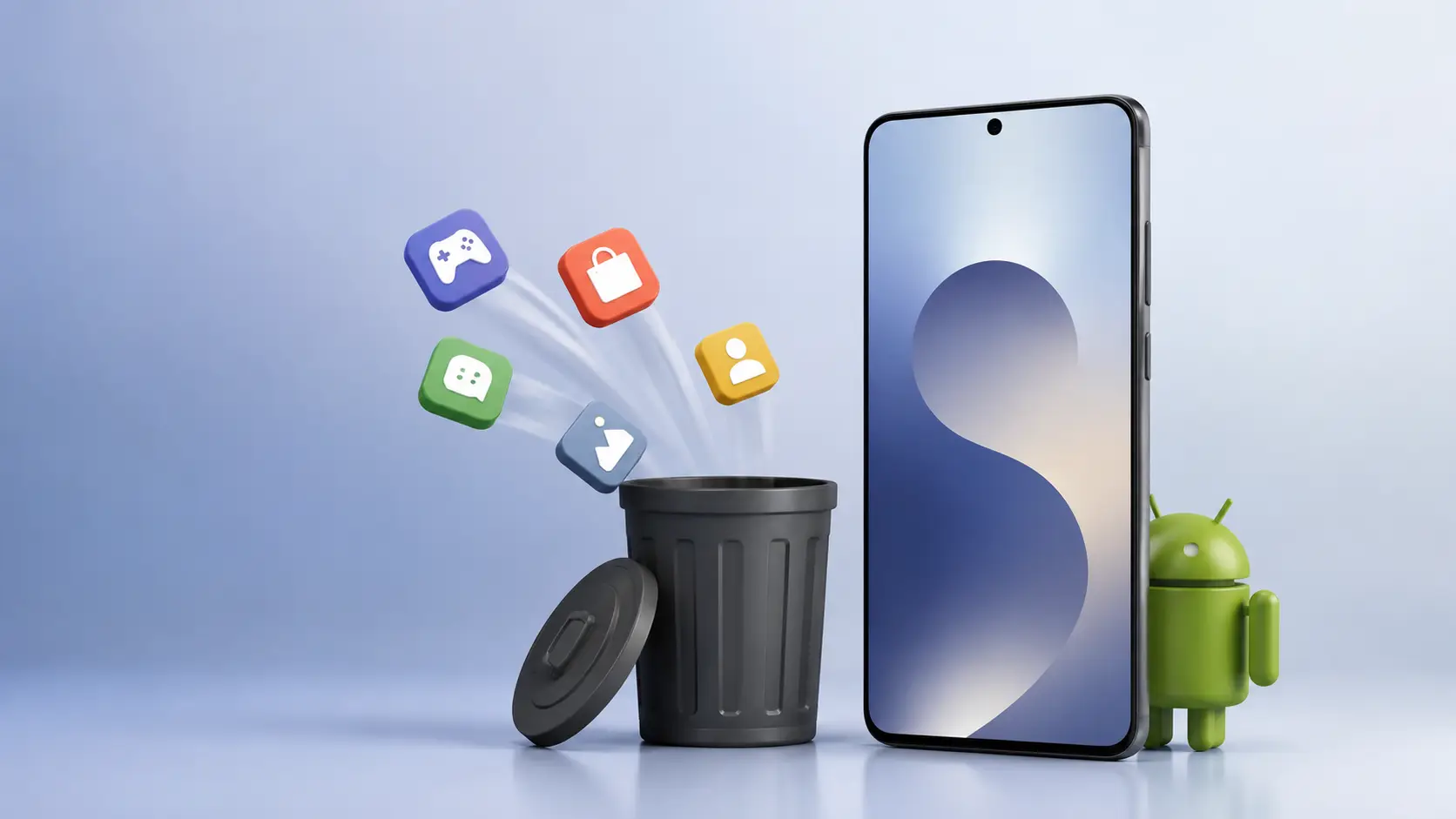
Samsung Galaxy phones often hide unwanted apps behind a greyed-out Uninstall button. You can remove much of that bloatware from Android without root access using Settings, ADB, or Shizuku with Canta. This guide explains each method, the risks, safe package checks, and recovery steps for One UI devices.
What Android Bloatware Is and Why It Matters
Bloatware means pre-installed apps you did not choose. Samsung apps, carrier services, Microsoft packages, trial games, and duplicate tools can all fit that description.
Some apps waste storage, download updates, send notifications, or run background services. Others only occupy system space and cause little practical harm.
Samsung also adds apps that connect to useful Galaxy features. Removing one package can affect Samsung Wallet, Galaxy Wearable, Quick Share, Bixby, or device diagnostics.
The safest approach removes one app at a time. Test your phone after each change.
You can remove apps through three levels:
| Method | Needs a computer | Root required | Risk level | Best for |
|---|---|---|---|---|
| Uninstall or disable | No | No | Low | Normal apps and obvious duplicates |
| ADB package removal | Yes | No | Medium | Stubborn packages with known names |
| Shizuku and Canta | No | No | Medium | Phone-only debloating on Android 11 or newer |
| Root removal | Usually | Yes | High | Advanced system modification |
ADB comes from Google's Android SDK Platform-Tools package. Google describes ADB as a command-line tool for communicating with Android devices and running shell commands. Download it from the official Android Platform-Tools page.
Requirements Before You Remove Samsung Bloatware
You need a few checks before removing any pre-installed app. Skipping them creates avoidable problems.
Confirm Your Galaxy Software Version
Open Settings > About phone > Software information. Record these details:
- One UI version.
- Android version.
- Build number.
- Galaxy model number.
Samsung changes menus across One UI versions. One UI 8.5 and One UI 9 may place developer settings in slightly different locations.
Do you know which app provides your phone's alarms, calls, contacts, and emergency functions? Check before touching those packages.
Create a Recovery Point
Samsung does not offer a universal undo button for every ADB removal. Back up your photos, messages, contacts, and important files before starting.
Open Settings > Accounts and backup > Backup and restore. Use Samsung Cloud, Google One, or Smart Switch for a second copy.
You can also record every package you remove. That list helps you restore the phone later.
Charge the Phone and Use a Trusted Cable
Charge your Galaxy phone above 50 percent. Use a data-capable USB cable for the ADB method.
A charging-only cable will make your computer ignore the phone. That problem looks like an ADB failure, but the cable causes it.
Install the Right Tools
For the computer method, download Platform-Tools from Google. Avoid random websites that bundle ADB with installers or extra programs.
For the phone-only method, install Shizuku from its official download page. Install Canta through Google Play.
Canta uses package recommendations, but you should inspect each package yourself. Its labels can reduce guesswork, but no recommendation replaces a backup.
How to Remove Bloatware from Android Without Root
Start with Samsung's own controls. Move to ADB only when Settings cannot remove or disable the app.
Method 1: Uninstall or Disable the App
Step 1. Open the app drawer and find the unwanted app.
Press and hold the app icon. Tap Uninstall if Samsung offers that option.
Step 2. Confirm the removal.
Read the warning before tapping OK. The Play Store can reinstall many regular apps later.
Step 3. Open the app's information screen when Uninstall appears unavailable.
Tap App info from the long-press menu. You can also open Settings > Apps, select the app, and inspect its controls.
Step 4. Tap Disable when Samsung allows it.
A disabled app stops appearing in the app drawer. Android also blocks most background activity and updates.
Step 5. Clear storage only when you understand the result.
Tap Storage > Clear data if you want to remove downloaded content. This may erase settings, accounts, or offline files.
Disabling works better than removal for Samsung packages connected to One UI. It gives you a safer rollback path.
Method 2: Remove Packages with ADB
ADB removes an app for the current Android user. It does not always delete the package from the read-only system partition.
That difference matters. A firmware update or factory reset may restore the app.
Enable Developer Options
Step 1. Open Settings and tap About phone.
Open Software information if your phone shows that extra menu.
Step 2. Tap Build number seven times.
Enter your screen lock when Samsung requests it. Your phone confirms that Developer options now exist.
Step 3. Return to Settings and open Developer options.
Use the Settings search bar if you cannot find the menu.
Step 4. Enable USB debugging.
Read the warning and tap OK. Keep this setting off when you finish.
Google documents the same USB debugging workflow in its Android device setup guide.
Connect Your Galaxy Phone
Step 1. Extract Platform-Tools into a simple folder.
Use a location such as your desktop or Documents folder. Avoid deeply nested folder names.
Step 2. Open Terminal inside the Platform-Tools folder.
On Windows, right-click an empty area and choose Open in Terminal.
Step 3. Connect your Galaxy phone with a data cable.
Unlock the phone and choose File transfer if the USB menu appears.
Step 4. Run the device check command.
adb devicesStep 5. Approve the debugging request on your phone.
Tap Allow when your Galaxy displays the computer fingerprint. Select Always allow from this computer only on a trusted computer.
Step 6. Check the package name before removing anything.
List installed packages with:
adb shell pm list packagesFilter Samsung packages with:
adb shell pm list packages | findstr samsungOn macOS or Linux, use:
adb shell pm list packages | grep samsungDo not remove packages based only on a friendly app name. Package names often look unrelated to the visible app.
Remove One Package
Step 1. Run the user-level uninstall command.
adb shell pm uninstall --user 0 PACKAGE.NAMEReplace PACKAGE.NAME with the package you verified.
For example:
adb shell pm uninstall --user 0 com.google.android.youtubeStep 2. Restart the phone and test core functions.
Check calls, messages, alarms, Bluetooth, Wi-Fi, cameras, Samsung Wallet, and Galaxy Wearable.
Step 3. Keep a written removal log.
Record the package name and the date. Your future self will thank you after a software update.
Restore a Removed Package
If a removed app causes trouble, reinstall it for the primary user:
adb shell cmd package install-existing --user 0 PACKAGE.NAMERestart the phone after restoring it. Some system services also need a cache refresh before they work normally.
Method 3: Use Shizuku and Canta Without a PC
Shizuku lets compatible Android apps call system APIs with ADB-level access. It does not grant full root access.
Shizuku supports wireless debugging on Android 11 and newer. Its official setup guide explains the startup process and known connection problems.
Start Shizuku Through Wireless Debugging
Step 1. Open Shizuku and tap Pairing.
Grant any requested notification permission. The notification helps you enter the pairing code.
Step 2. Open Developer options from Shizuku.
Tap Wireless debugging when Shizuku offers the shortcut.
Step 3. Enable Wireless debugging.
Keep your phone connected to the same Wi-Fi network during pairing.
Step 4. Tap Pair device with pairing code.
Android displays a six-digit code.
Step 5. Enter the code through the Shizuku notification.
Pull down the notification shade and tap the Shizuku pairing prompt.
Step 6. Return to Shizuku and tap Start.
Wait for the service status to show that Shizuku runs.
Remove Apps Through Canta
Step 1. Open Canta and grant Shizuku access.
Canta cannot manage packages until Shizuku provides permission.
Step 2. Search for the app you want to remove.
Read the package description and recommendation label. Search the package name online when the description looks unclear.
Step 3. Select one app and tap the trash icon.
Confirm the action only after checking the package name.
Step 4. Restart and test your phone.
Check the same core functions after every removal.
Step 5. Restore the app from Canta's removed-app section if needed.
Canta warns that removing an important package can create severe problems. A boot loop may require a factory reset, according to its Google Play listing.
Which Samsung Apps Should You Remove?
Remove apps you recognize and never use. Start with carrier promotions, duplicate streaming apps, trial games, and optional social media packages.
Treat core Samsung services as hands-off unless you understand their dependencies.
Common low-risk candidates often include:
- Carrier shopping or account apps you never use.
- Pre-installed games and trial services.
- Duplicate browser or media apps.
- Optional social media packages.
- Samsung services tied to features you never use.
Avoid removing these categories:
- Phone, Contacts, and Messages.
- Samsung Account services.
- Google Play Services.
- Android System WebView.
- One UI Home.
- Settings.
- System UI.
- Bluetooth and Wi-Fi services.
- Package Installer.
- Samsung Wallet if you use tap-to-pay.
- Galaxy Wearable if you connect watches or earbuds.
What matters more to you, a cleaner app drawer or extra storage? Disabling an app usually handles the first goal without risking the second.
Common Android Bloatware Problems and How to Fix Them
Problem: adb devices Shows Nothing
Cause: The cable, USB mode, driver, or debugging authorization failed.
Fix:
- Unlock the Galaxy phone.
- Try another data cable.
- Set USB mode to File transfer.
- Reconnect the phone.
- Revoke USB debugging authorizations under Developer options.
- Run
adb devicesagain. - Approve the new fingerprint request.
Windows may also need Samsung USB drivers. Download drivers from Samsung's support pages for your region.
Problem: unauthorized Appears Beside the Device
Cause: Your phone has not approved the computer.
Fix:
- Disconnect the cable.
- Open Developer options.
- Tap Revoke USB debugging authorizations.
- Reconnect the cable.
- Unlock the phone.
- Tap Allow on the authorization prompt.
Do not approve a computer you do not control.
Problem: Failure [not installed for 0]
Cause: The package name does not match the installed app or the app already disappeared.
Fix:
- Run
adb shell pm list packages. - Search for the exact package name.
- Copy the result without extra spaces.
- Run the uninstall command again.
- Check Canta or App info for the current package identity.
Samsung sometimes changes package names between models and software regions.
Problem: The App Returns After a Restart
Cause: You removed the app only for the current user, or another service restored it.
Fix:
- Confirm the package status with
adb shell pm list packages. - Disable the related updater or installer only after identifying it.
- Check Galaxy Store and Play Store auto-update settings.
- Repeat the user-level removal command.
- Test after the next software update.
Firmware updates can restore packages. Keep your removal log for future cleanup.
Problem: A Samsung Feature Stops Working
Cause: The removed package supported another app or system component.
Fix:
- Restore the package with
cmd package install-existing. - Restart the phone.
- Clear the affected app's cache.
- Test the feature again.
- Keep the package if the problem returns.
Do not remove several packages together. You lose the ability to identify the cause.
Problem: Shizuku Stops After Reboot
Cause: Android ends the wireless debugging session after a restart.
Fix:
- Open Developer options.
- Confirm Wireless debugging remains enabled.
- Open Shizuku.
- Pair the phone again if Android requests a new code.
- Tap Start inside Shizuku.
- Reopen Canta and grant access again.
This behavior reflects Android's security model. It does not mean your Galaxy phone failed.
Tips and Pro Moves for Safer Debloating
Use the least powerful method that solves your problem. Disable first, remove second.
Take screenshots before changing app settings. Screenshots preserve package names, menu paths, and warnings.
Test in this order after each removal:
- Phone calls.
- Mobile data.
- Wi-Fi and Bluetooth.
- Camera.
- Notifications.
- Samsung Wallet.
- Galaxy Wearable.
- Alarms.
- Play Store updates.
A package database can reveal more than the app drawer. Use:
adb shell pm list packages -sThat command lists system packages. Use it for identification, not automatic deletion.
Use app storage screens to judge whether removal saves meaningful space. Some packages occupy little user storage because Android stores them in the system image.
You may gain more battery life from disabling background permissions. Open Settings > Battery > Background usage limits and add unused apps to Deep sleeping apps.
This approach preserves more Samsung features. It also avoids the recovery work that follows a bad package removal.
Frequently Asked Questions About Removing Android Bloatware Without Root
Q: Can I remove Samsung bloatware without root?
A: Yes. You can uninstall or disable many apps from Settings. ADB and Shizuku with Canta can manage additional packages without root access.
Q: Does ADB permanently delete system apps?
A: Usually, no. The command removes the package for the current Android user. A factory reset or firmware update may restore it.
Q: Is Canta safe to use on Samsung phones?
A: Canta can work safely when you verify each package first. Removing a core service can break features or cause a boot problem. Keep a backup before using it.
Q: What Samsung apps should I never remove?
A: Avoid Phone, Settings, One UI Home, System UI, Package Installer, Google Play Services, and Android System WebView. Keep Samsung Account services if you use Galaxy ecosystem features.
Q: Can debloating improve Samsung battery life?
A: It can reduce background activity from unwanted apps. Battery gains vary because many pre-installed packages use little power when disabled.
Q: Can I remove carrier apps without root?
A: Yes. Settings may let you uninstall or disable them. ADB can remove carrier packages for the current user when normal controls fail.
Q: Will removing bloatware void my Samsung warranty?
A: ADB removal without root normally does not modify the bootloader or trigger Knox. Rooting and bootloader changes create separate warranty and security concerns.
Q: What happens after a factory reset?
A: User-level removals usually disappear after a factory reset. Pre-installed packages can return because the system image remains intact.
Clean Your Galaxy Without Turning It Into a Science Project
Start with Settings, disable obvious clutter, and record every change. Use ADB for known packages, or choose Shizuku and Canta when you need a phone-only workflow.
Keep your first cleanup small. If you want deeper Samsung customization afterward, review this guide to replace Samsung Keyboard with HeliBoard and compare its privacy trade-offs.
You can also inspect Samsung notification controls before removing apps that send unwanted alerts. For missing Samsung tools, Fine Lock's Good Lock compatibility guide explains safer customization paths.
Which Galaxy app are you trying to remove, and what model and One UI version does your phone run?




Responses (0 )