

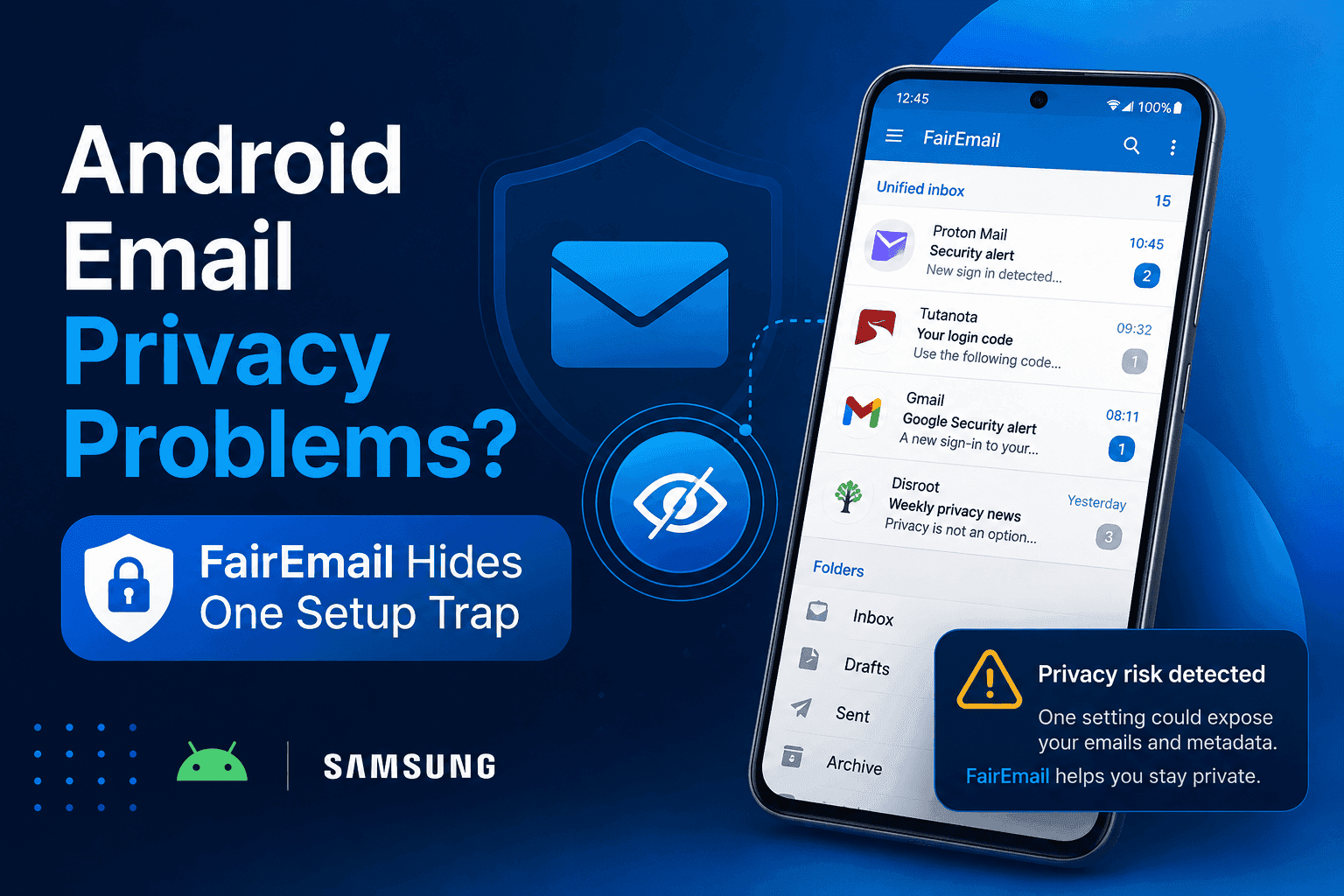
Samsung Email gives you a clean inbox, but it cannot stop every tracking image, risky link, or provider limitation. FairEmail fixes much of that problem through local processing, privacy controls, and direct IMAP access. The catch sits in the account setup, where one wrong app-store choice can break Google sign-in before you read your first message.
Key Takeaways
- FairEmail works with Gmail, Outlook, Yahoo, and most providers using IMAP, POP3, and SMTP.
- The F-Droid build lacks approved Google OAuth support, so Gmail users should choose Google Play or GitHub.
- Samsung battery controls can delay notifications unless you exempt FairEmail from sleep rules.
- FairEmail protects message viewing, but it cannot protect a compromised email account.
- Exchange Web Services and Microsoft ActiveSync do not work with the app.
What FairEmail Is and Why Samsung Users Should Care
FairEmail is an open-source Android email client focused on local processing and privacy. It connects directly to your existing mailbox, so you keep your current Gmail, Outlook, Yahoo, or custom email address.
The app does not provide an email address. It also does not act as a calendar, contact manager, task app, or note manager. You bring the mailbox, password, and provider access.
The project publishes its source code under the GPL-3.0 license on . The repository lists support for unlimited accounts, unified inboxes, conversation threading, offline operations, IMAP IDLE, and push notifications.
That feature set matters on Samsung phones because privacy controls work differently from Samsung Email’s normal inbox experience. FairEmail can ask before loading images, opening links, or downloading attachments.
Those prompts reduce silent tracking and phishing risks. They also add friction, which makes the app less suitable for people who want every message to open instantly.
The app removes unsafe HTML, styling, and scripts from message views. It also attempts to detect tracking images and warns when a message lacks authentication.
The biggest difference appears inside the message screen. Samsung Email usually aims for speed and visual simplicity, while FairEmail treats every external image and link as a possible privacy event.
That approach does not make phishing impossible. A malicious sender can still trick you if you ignore warnings or approve unsafe content.
FairEmail also supports OpenPGP and S/MIME encryption. These features help only when the sender, recipient, and certificates or keys support the same standard.
Requirements Before You Start
You need an Android phone or tablet running Android 5.0 or newer. Current FairEmail builds support smartphones and tablets, but not Android TV or E Ink devices.
A Samsung Galaxy phone running One UI 6, One UI 7, One UI 8, or newer should meet the platform requirement. Your exact menus may differ by device model and software version.
You also need these items before setup:
- Your email address and account password.
- IMAP and SMTP access through your email provider.
- An app password if your provider blocks normal third-party sign-ins.
- A stable internet connection during account setup.
- Permission to disable battery restrictions for timely notifications.
FairEmail offers quick setup for many major providers. Select the provider, enter your name, email address, and password, then tap Check.
The app may ask for contact permission if you want address lookups or contact photos. You can refuse that permission and continue reading and sending email.
The app also runs a low-priority foreground service. Samsung may show a permanent notification because Android uses that service to maintain timely synchronization.
Choose the Correct Download Source
The download source matters most for Gmail and Google Workspace accounts.
The Google Play listing offers OAuth support for supported providers. The GitHub release also works with Google sign-in.
The standard F-Droid build does not include Google-approved OAuth support, according to the F-Droid listing. You may need an app password or manual configuration.
The IzzyOnDroid listing also warns about OAuth limitations in the F-Droid build. Its listed version can differ from the main F-Droid catalog.
The current listings also show version differences. F-Droid lists version 1.2314, while IzzyOnDroid lists version 1.2322. Check the release date and signing source before installing.
WARNING: Never install a random FairEmail APK from a download mirror. Use Google Play, GitHub, F-Droid, or IzzyOnDroid.
Step-by-Step FairEmail Setup on Samsung
Step 1. Install FairEmail from a trusted source
Install FairEmail through Google Play if you use Gmail or Google Workspace.
The Play Store version simplifies OAuth login. Choose GitHub if you prefer the official release and understand manual APK installation.
Step 2. Open the quick setup wizard
Launch the app and select your email provider from the setup screen.
Choose Other provider if your service does not appear. Enter your email address, name, and password, then tap Check.
FairEmail tries to identify the correct server settings automatically. This process needs an active internet connection.
Step 3. Approve the provider sign-in
Complete the provider’s login page when FairEmail opens an OAuth window.
Approve access only if the address and app identity look correct. Google sign-in should show the official FairEmail package and account permission screen.
F-Droid users may not see this login flow. Use an app password or manual IMAP and SMTP settings instead.
Step 4. Confirm the account folders
Review the folders FairEmail discovers from your provider.
Confirm Inbox, Sent, Drafts, Trash, and Spam when the app asks you to map system folders. Incorrect mapping can make sent messages appear missing.
Tap Save after checking the folder selection.
Step 5. Add an identity for sending
Receiving mail requires an account. Sending mail requires an identity.
Open the left menu, choose Settings, then select Manual setup and more options. Tap Identities, press the plus button, and link the identity to your account.
Enter the name that should appear in outgoing messages. Add a signature through the identity settings when needed.
Step 6. Test incoming mail
Send a test message to your new FairEmail address from another account.
Wait for the notification, open the message, and check whether remote images remain blocked. Tap the image warning only when you trust the sender.
Step 7. Test outgoing mail
Reply to the test message and send it.
Check the Sent folder from your provider’s web interface. This confirms that FairEmail stored the sent message correctly on the server.
Step 8. Remove Samsung battery restrictions
Open Settings, tap Apps, choose FairEmail, then select Battery.
Choose Unrestricted or disable Pause app activity if unused, depending on your One UI version. Samsung can delay synchronization when it places FairEmail into deep sleep.
The FairEmail setup guide also recommends disabling Android battery optimization for continuous delivery. Your phone may show slightly higher background activity after this change.
Step 9. Configure notifications
Open FairEmail, tap the three-line menu, choose Settings, then open Notifications.
Select notification sounds, vibration, privacy display, and action buttons. Android 8 and newer support notification settings by account, folder, or sender.
For Samsung-specific notification controls, see this guide on changing notification sounds for each app. One UI may hide notification categories until you enable them inside system notification settings.
Step 10. Enable app protection
Open Settings inside FairEmail and select Privacy.
Tap PIN or Enable fingerprint and follow the prompts. This adds a second lock around your messages when someone can unlock your phone.
Samsung users can also review Samsung’s app lock privacy options. The system feature and FairEmail’s own lock solve different problems.
FairEmail Versus Samsung Email, Gmail, and Outlook
FairEmail suits users who want control over tracking, account storage, and message display. Samsung Email suits users who prefer a familiar Galaxy interface with minimal configuration.
| Feature | FairEmail | Samsung Email | Gmail | Outlook |
| Open-source code | Yes | No | No | No |
| Unlimited accounts | Yes | Yes | Multiple accounts | Multiple accounts |
| Unified inbox | Yes | Yes | Limited account views | Yes |
| Tracker image controls | Strong controls | Basic controls | Provider-level controls | Provider-level controls |
| OpenPGP and S/MIME | Yes | Limited provider dependence | Account-dependent | S/MIME support varies |
| Exchange ActiveSync | No | Yes on supported accounts | No direct EAS | Yes |
| Google OAuth | Play and GitHub builds | Supported | Native | Supported |
| Offline operations | Yes | Yes | Limited by account behavior | Yes |
| Local message processing | Strong focus | Mixed | Google service focus | Microsoft service focus |
The comparison exposes the main trade-off. FairEmail gives you more privacy controls, but Samsung Email handles Exchange accounts better.
FairEmail also asks you to understand IMAP, SMTP, folder mapping, and Android battery behavior. That learning curve creates more work during setup.
If your employer uses Microsoft Exchange Web Services or ActiveSync, FairEmail may not fit. The project explicitly excludes those non-standard protocols.
Common FairEmail Problems and How to Fix Them
Problem: Gmail sign-in opens no Google login screen
Cause: You installed a build without Google-approved OAuth support.
Fix:
- Confirm whether you installed FairEmail from F-Droid.
- Export your settings if you already configured another account.
- Install the Play Store or official GitHub build.
- Add Gmail again through the quick setup wizard.
- Use an app password only when your account policy supports it.
Do not enter your Google password into an unknown third-party login page.
Problem: FairEmail receives messages late on a Samsung phone
Cause: One UI restricted background activity or applied battery optimization.
Fix:
- Open Settings and tap Apps.
- Select FairEmail, then tap Battery.
- Choose Unrestricted.
- Open Settings, select Notifications, and allow FairEmail alerts.
- Open FairEmail Settings, then check synchronization options.
- Restart the phone and send a test message.
A VPN can also cause authentication or delivery problems. Email servers may block shared VPN addresses after abuse from another user.
Problem: “Authentication failed” appears during setup
Cause: The provider rejected the password, blocked IMAP, or requires an app password.
Fix:
- Confirm the account password in your provider’s official website.
- Check whether IMAP access remains enabled.
- Turn off your VPN temporarily.
- Enable two-factor authentication if your provider requires it.
- Create an app password when the provider offers that option.
- Retry the account through Manual setup and more options.
Password managers can paste an old password or invisible whitespace. Type the password once manually to rule out both problems.
Problem: Sent messages do not appear in the Sent folder
Cause: FairEmail mapped the wrong system folder or the provider delayed server synchronization.
Fix:
- Open Settings inside FairEmail.
- Tap Manual setup and more options.
- Choose Accounts, then select the affected account.
- Review the system folder mapping at the bottom.
- Select the provider’s actual Sent folder.
- Send another test message and check the web mailbox.
Folder names differ across providers. A folder called “Sent Items” may not match a folder called “Sent.”
Problem: Images remain hidden inside messages
Cause: FairEmail blocks remote images to reduce tracking.
Fix:
- Open the message.
- Review the image warning.
- Tap the option to show images for that message.
- Add the sender or domain to an approved image rule only when trusted.
- Keep default blocking enabled for unknown senders.
A remote image can identify when you opened a message. Treat the prompt as a privacy control, not a loading error.
Tips and Pro Moves Samsung Users Should Try
Use a unified inbox with selected folders
FairEmail can include selected folders inside the unified inbox. Long-press a folder in the folder list, then enable Show in unified inbox.
This setup works well when you want work mail and personal mail together. Exclude noisy newsletters so the inbox remains useful.
Schedule synchronization around your day
Open Settings, choose Receive, and enable Schedule.
Set the days and hours when FairEmail should synchronize. Keep urgent accounts outside the schedule through the account’s advanced options.
This setting reduces nighttime interruptions without disabling the account.
Block tracking without losing useful newsletters
Open Settings, choose Privacy, and keep image confirmation enabled.
Approve images from trusted newsletters one message at a time. Do not whitelist an entire marketing domain unless you accept its tracking pixels.
Protect message previews
Open Settings, select Notifications, and adjust the preview text.
Choose sender-only notifications when your lock screen displays sensitive messages. Samsung’s notification settings can override app-level choices, so check both menus.
Export your settings before changing builds
Open the backup settings tab and export FairEmail settings before moving from F-Droid to GitHub or Google Play.
The builds use different signing certificates. Android may require you to uninstall one build before installing another.
PRO TIP: Export settings before changing stores, then verify the backup file opens correctly. A backup you never tested does not count as a backup.
Check the privacy cost of avatars
FairEmail can show generated icons, Gravatars, and Libravatars. External avatar services can reveal sender addresses or network requests.
Open Settings, select Display, then review the message header options. Choose generated icons when privacy matters more than profile photos.
Frequently Asked Questions About FairEmail
Q: Is FairEmail safe to use on Samsung phones?
A: FairEmail uses open-source code, local message storage, and privacy controls for images, links, and attachments. The app cannot protect your mailbox if someone steals your password or your provider suffers a breach. Download it from Google Play, GitHub, F-Droid, or IzzyOnDroid.
Q: Can FairEmail connect to Gmail?
A: Yes, FairEmail can connect to Gmail through the Play Store or GitHub build using Google OAuth. The F-Droid build does not include Google-approved OAuth support. Gmail users should choose the Play Store build for the simplest setup.
Q: Does FairEmail support Microsoft Exchange?
A: FairEmail does not support Microsoft Exchange Web Services or Microsoft ActiveSync. You can use a Microsoft account through IMAP when your organization allows it. Outlook remains the better choice for accounts that require Exchange features.
Q: Is FairEmail free?
A: Most FairEmail features work without payment. Pro features add advanced tools such as filter rules, search indexing, biometric authentication, synchronization schedules, and export settings. The app uses in-app purchases to fund ongoing development.
Q: Why does FairEmail show a permanent notification?
A: FairEmail runs a low-priority foreground service to maintain timely synchronization. Android displays a notification for that service. You can adjust its appearance through Android notification settings, but hiding it may affect your awareness of background activity.
Q: Can FairEmail block email tracking?
A: FairEmail can block or delay many tracking images by asking before it loads remote content. It also warns about suspicious links and reformats messages to reduce phishing risks. No email client can identify every tracking method.
Q: Does FairEmail work without Google Play Services?
A: Yes, FairEmail can work on devices without Google services. Push delivery uses IMAP IDLE and the app’s foreground service rather than Firebase Cloud Messaging. Battery rules on non-Google Android builds may use different menu names.
Q: Does FairEmail replace Samsung Email completely?
A: FairEmail can replace Samsung Email for IMAP and POP3 accounts. Samsung Email remains a better choice for some Exchange accounts and users who want a simpler setup. Test one account first before moving every mailbox.
Make the Switch Without Losing Your Inbox
FairEmail solves the privacy problem by putting more control between you and the message content. The best result comes from choosing the Play Store build for Gmail, disabling Samsung battery restrictions, and testing folder mapping before moving every account.
Start with one non-critical mailbox. Confirm incoming mail, outgoing mail, notifications, Sent folder placement, and image blocking.
Then add your main account after the test passes. If you want stronger privacy across your Galaxy phone, pair FairEmail with Samsung Secret Mode and review which apps can show lock-screen previews.
Which FairEmail feature matters most to you, tracker blocking, unified inboxes, encryption, or Samsung notification control? Share your setup question in the comments.




Responses (0 )