

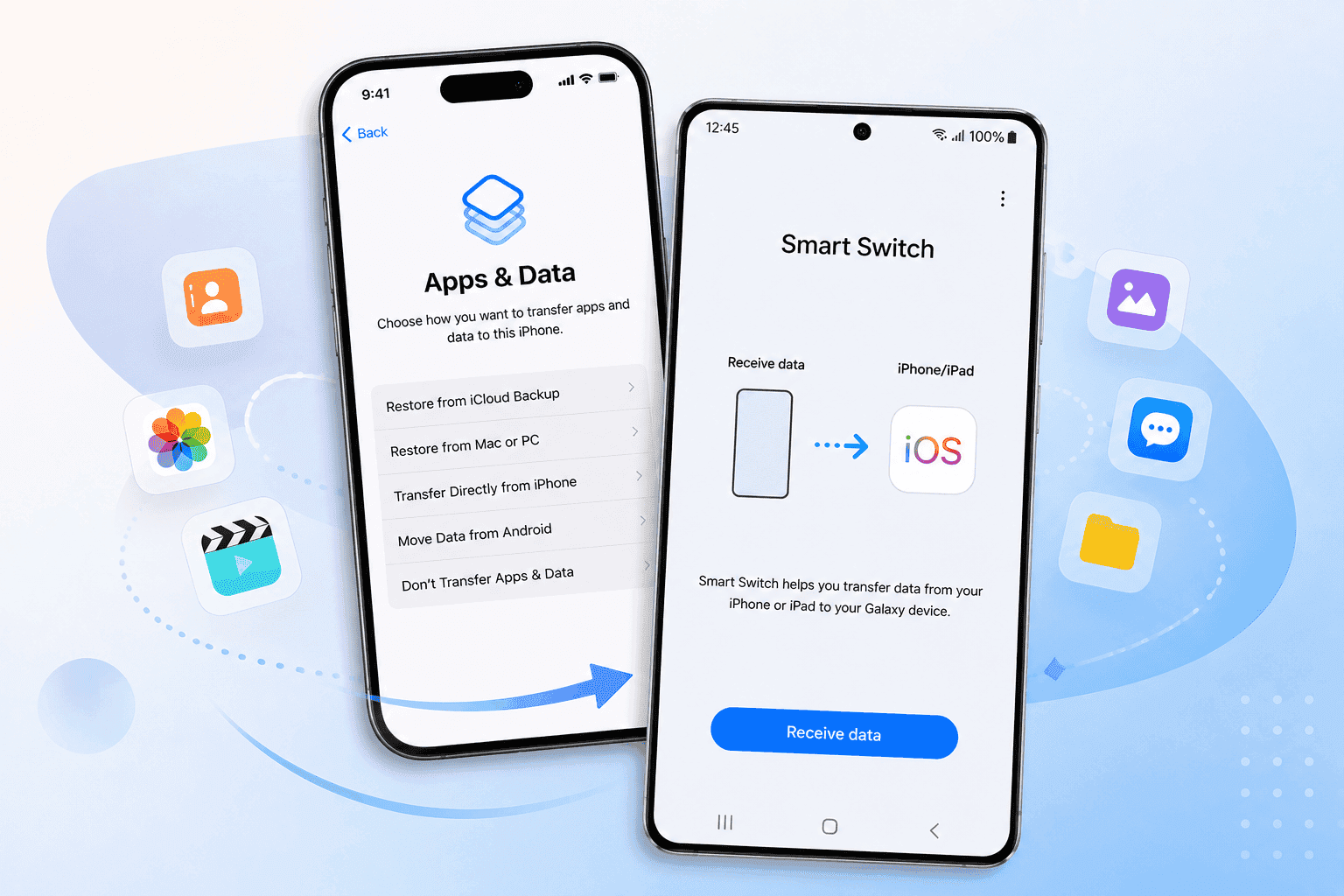
Samsung has updated Smart Switch for One UI 9, simplifying Samsung Smart Switch iPhone transfer without requiring an iPhone app. The revised process adds QR-based setup, broader wireless data support, passwords, passkeys, call history, Wi-Fi networks, and eSIM transfers. The changes currently target newer Galaxy devices and iPhones running iOS 26.6 or later.
What Happened and Why It Matters
Samsung Smart Switch now lets iPhone users begin a Galaxy migration by scanning a QR code with the iPhone camera. Samsung’s official Smart Switch guide says the iPhone does not need a separate app under the upgraded process.
FutureFive reported the update on August 11, citing Samsung New Zealand product manager Jack Miller. Miller said Samsung focused on reducing data loss concerns and removing setup friction for people changing ecosystems.
The change matters because moving platforms often creates more anxiety than buying the new phone. People worry about messages, photos, apps, account access, and mobile service. Samsung now handles more of those tasks inside the initial Galaxy setup.
Would you switch from an iPhone sooner if the transfer process preserved more of your daily setup?
Key Details of the One UI 9 Smart Switch Update
Samsung’s upgraded process expands wireless transfer support to match the data coverage previously associated with wired transfers. SamMobile identified these newly supported categories:
- Passwords and passkeys can move from compatible Apple devices to supported Galaxy phones.
- Accessibility settings can transfer during the initial setup.
- Call history and saved Wi-Fi networks can transfer wirelessly.
- Compatible eSIM information can move during the Galaxy setup process.
- Photos, videos, contacts, messages, notes, calendars, apps, and files remain supported.
The setup flow starts on the Galaxy phone. Open Smart Switch, choose Receive on this phone, select iPhone/iPad, then scan the displayed QR code.
Samsung says the iPhone opens a transfer page after scanning. You then choose the data categories and continue from both phones.
Samsung recommends a cable for large transfers because wired connections usually finish faster. The wireless process also requires the iPhone screen to remain active during the transfer.
Background and Compatibility
Samsung has supported iPhone-to-Galaxy transfers through Smart Switch for years. Older methods required the iPhone app, an iCloud backup, a computer, or a cable.
The One UI 9 process changes the first-contact step. The iPhone camera now acts as the entry point for supported devices, which removes an app download before setup begins.
Samsung’s official documentation lists Android 17 or later and iOS 26.6 or later for the upgraded wireless method. Samsung excludes mainland China from that specific method.
SamMobile reported that the feature first appeared on the Galaxy Z Fold 8, Galaxy Z Fold 8 Ultra, and Galaxy Z Flip 8. Samsung’s public documentation presents broader compatibility language for devices running the required software.
That difference matters. A Galaxy phone running One UI 9 may not receive every Smart Switch feature immediately.
What's Confirmed and What's Still Unclear About Samsung Smart Switch iPhone Transfer
Confirmed: Samsung’s official Smart Switch page says compatible iPhones can transfer data without installing Samsung’s iOS app.
Still Unclear: Samsung has not published a complete model-by-model list for every Galaxy device receiving the upgraded flow.
What It Means: Check your Galaxy software version before assuming the QR method will appear.
Confirmed: Samsung lists Android 17 or later and iOS 26.6 or later for the upgraded iPhone transfer method.
Still Unclear: Samsung has not explained whether carriers must support every eSIM transfer scenario.
What It Means: Your carrier may request a separate activation step after the data move.
Confirmed: Samsung supports passwords, passkeys, eSIM information, Wi-Fi networks, and call history in the expanded transfer list.
Still Unclear: App data depends on each app developer and the destination app’s Android support.
What It Means: Smart Switch can reduce setup work, but it cannot recreate every iPhone app environment.
What This Means for Galaxy Users
The update makes a new Galaxy phone easier to recommend to iPhone owners. The biggest gain comes from combining QR setup with broader wireless support.
Passwords and passkeys could save time during the first hours with a Galaxy phone. Wi-Fi networks also remove one small task that becomes annoying across several rooms, offices, and travel locations.
eSIM transfer offers the largest practical benefit. A phone migration can feel unfinished when your data arrives but your mobile number requires separate carrier support.
Samsung’s wider software strategy also matters. Galaxy owners can track update timing through Sammyguru’s Samsung software coverage, then adjust everyday settings with this Samsung Keyboard troubleshooting guide.
Do you care more about password transfer or eSIM support when changing phones?
Frequently Asked Questions About Samsung Smart Switch iPhone Transfer
Q: Does Samsung Smart Switch require an iPhone app after the One UI 9 update?
A: Not for the upgraded transfer method. Samsung says compatible iPhones can scan a QR code and continue through the transfer page without installing Smart Switch.
Q: Which iPhones support the new Smart Switch transfer process?
A: Samsung lists iPhones and iPads running iOS 26.6 or later. Mainland China does not support the upgraded method listed on Samsung’s official page.
Q: Can Smart Switch transfer passwords and passkeys from iPhone to Galaxy?
A: Samsung lists passwords and passkeys among the supported data categories. App-specific credentials may require separate sign-in steps after migration.
Q: Can Smart Switch transfer an iPhone eSIM to a Galaxy phone?
A: Samsung lists eSIM information as supported in the upgraded flow. Carrier support may affect activation, so keep your carrier account details available.
What to Watch as One UI 9 Reaches More Galaxy Phones
Samsung Smart Switch iPhone transfer now removes several reasons to delay a move to Galaxy. The QR process, expanded wireless support, and eSIM handling address the setup tasks that usually cause the most frustration.
Samsung has not published a universal rollout list for every One UI 9 device. Watch your Galaxy’s software update page and Samsung’s support documentation before starting a migration.
If you recently moved from iPhone to Galaxy, share which data transferred successfully and where the process stopped.





Responses (0 )