

Your Samsung keyboard is not broken. It follows orders, and every accidental tap on the suggestion bar counts as an order. Samsung keyboard suggesting wrong words is a training problem far more often than a bug, and you can retrain the system in about five minutes.
Key Takeaways
Samsung Keyboard pulls predictions from two places, a fixed language model and a learned-word database that only your own typing fills.
Removing one bad word from the suggestion bar takes a single long press and works better than wiping every setting you own.
Resetting keyboard settings deletes learned words permanently, and Samsung Cloud sync can push those same words back on the next backup.
Multilingual typing causes a large share of wrong word suggestions on One UI 7, One UI 8, and One UI 8.5.
Predictions need roughly one week of normal typing before they feel accurate again after any reset.
What Samsung Keyboard Prediction Actually Does on One UI
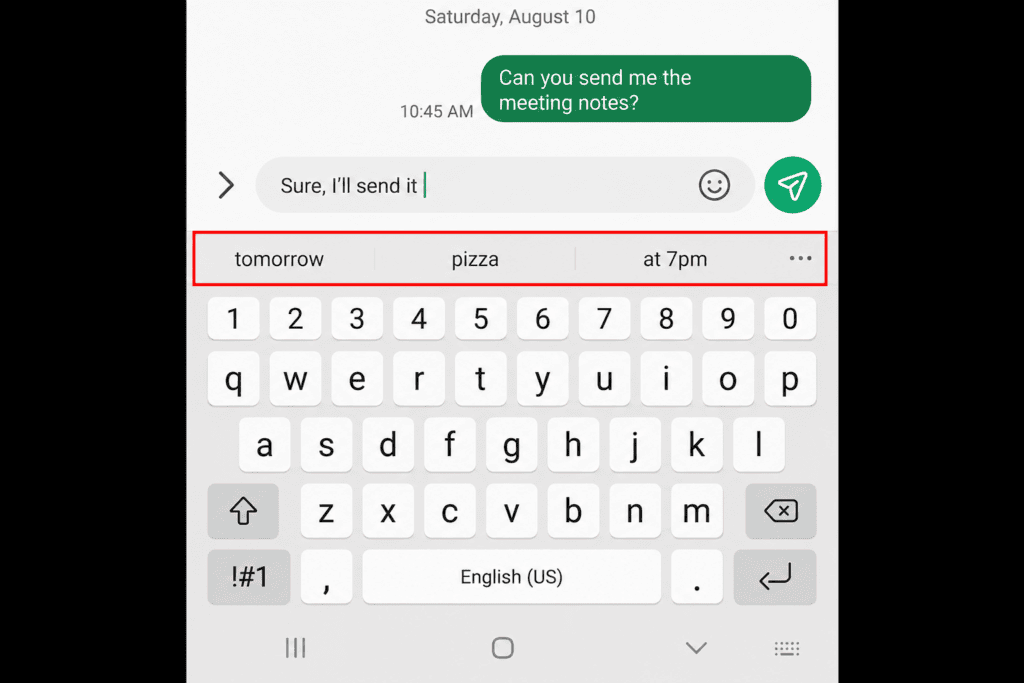
Samsung Keyboard runs two systems that most people treat as one. Predictive text guesses your next word from a built-in language model plus your personal learned-word database. Auto replace swaps a word you already typed for the closest match it finds.
The learned-word database causes most of the damage. It absorbs every word you type repeatedly and every suggestion you tap, including the ones you tapped by mistake. Samsung’s support documentation on personalising predictive text states plainly that the feature gets better the more you use it, which cuts both ways.
Learned words and your personal dictionary are different things
Learned words sit inside the Samsung Keyboard app data, split by input language. Your Personal dictionary is a separate manual list you control by hand. Clearing one leaves the other untouched, and that single fact saves people a lot of pointless resetting.
SamMobile’s breakdown of why keyboards suggest the wrong words points to accidental confirmations as the main culprit. Gaming slang, group-chat abbreviations, and half-typed words all land in the same pool. Your work email then inherits vocabulary from your Discord server.
What You Need Before You Reset Samsung Keyboard Predictions
Check four things first. The steps below apply to Galaxy phones running One UI 6.1 through One UI 8.5, covering the Galaxy S23, S24, S25, S26, Z Fold, Z Flip, and A series. Older One UI 5 builds use the same menu names with slightly shallower nesting.
Samsung Keyboard must sit as your active keyboard, since Gboard and SwiftKey store their predictions in completely separate databases you cannot reach from these menus.
Your Samsung account sync status matters, because Samsung Cloud can restore a backed-up keyboard profile and undo a reset within hours.
Any word you genuinely rely on, such as surnames, street names, or product codes, belongs in your personal dictionary before you clear anything.
A current software build helps, so check the Samsung software update roadmap for August 2026 to see when your model receives its next patch.
WARNING: Clearing Samsung Keyboard storage removes every learned word with no undo and no export. Screenshot your personal dictionary before you touch it.
How to Stop Samsung Keyboard Suggesting Wrong Words Step by Step
Work through these in order and stop as soon as your suggestions behave. The first four steps fix roughly eight out of ten cases without deleting anything you want to keep.
Step 1. Open Settings and tap General management
Scroll near the bottom of the main Settings list. Every keyboard control on One UI lives inside this menu, not inside Display or Accessibility.
Step 2. Tap Language and input, then On-screen keyboard
Confirm Samsung Keyboard appears as your default. A greyed-out entry means another keyboard app took over as the system input method.
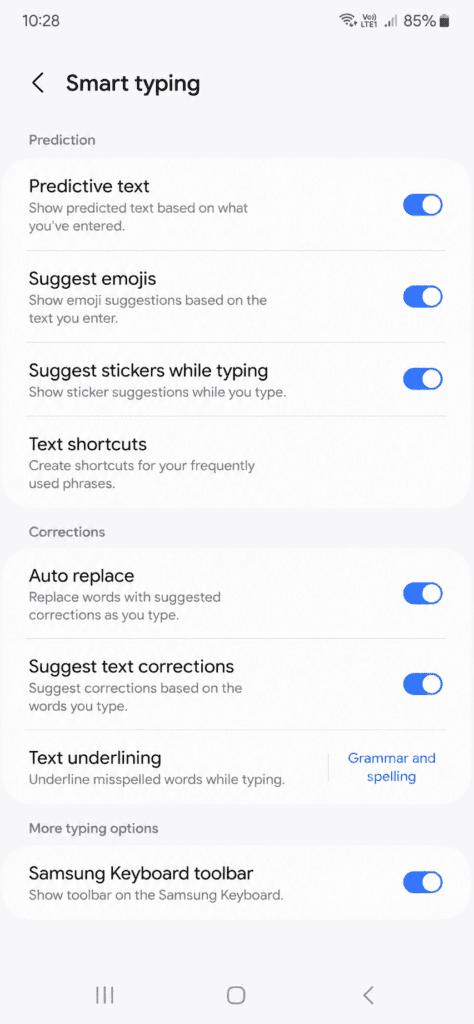
Step 3. Open Samsung Keyboard, then Smart typing
You will see Predictive text, Suggest text corrections, Auto replace, and Text shortcuts. Leave Predictive text on for now, because switching it off hides the symptom without fixing the cause.
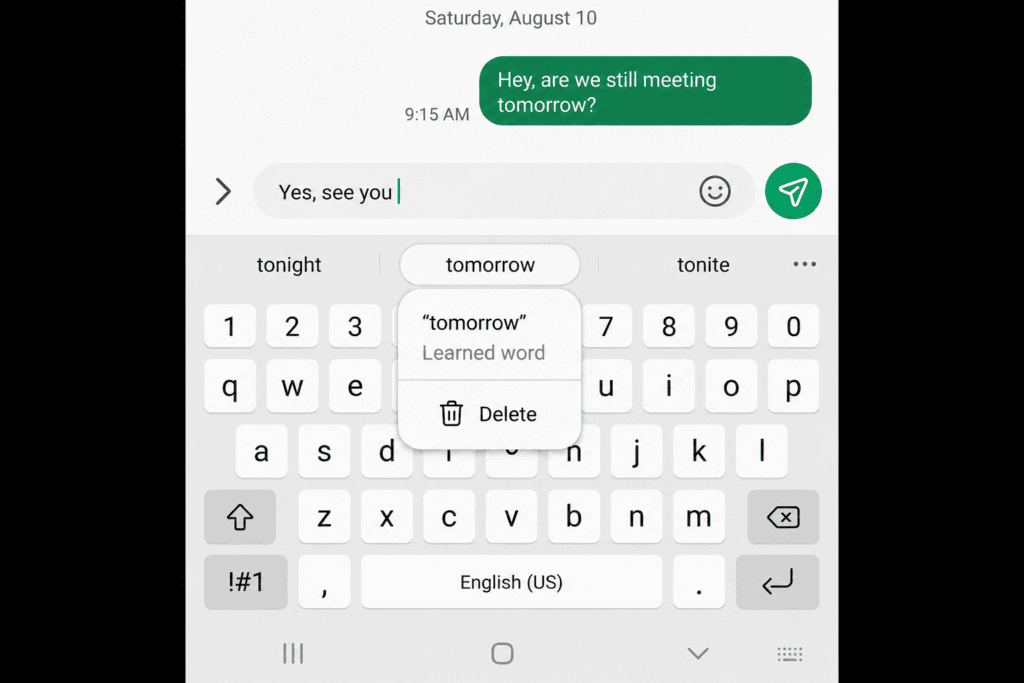
Step 4. Long-press each bad word in the suggestion bar and remove it
Open any messaging app, type the trigger letters, and hold the wrong suggestion until the delete prompt appears. This surgical removal deletes one entry from the learned database and leaves your other words alive.
Step 5. Turn off Personalised predictions if anyone else uses your phone
Shared devices blend two vocabularies into one profile, and the keyboard cannot separate them afterwards. Do you hand your phone to a partner, a kid, or a colleague more than once a week?
Step 6. Add your real vocabulary to Personal dictionary
Inside Samsung Keyboard settings, open Personal dictionary and add names, brands, and jargon you type weekly. Words on this list survive resets and resist auto replace.
Step 7. Disable Samsung Cloud keyboard sync before any reset
Go to Settings > Samsung Cloud > Sync and auto backup settings and switch off the keyboard entry. Skipping this step lets an old backup reinstall the exact words you just deleted.
Step 8. Clear Samsung Keyboard storage
Open Settings > Apps, tap the filter icon, enable Show system apps, and select Samsung Keyboard. Tap Storage, then Clear data, then restart your phone.
Step 9. Reset keyboard settings as a last resort
Navigate to Settings > General management > Reset > Reset keyboard settings. This returns layout, languages, height, and prediction behaviour to factory defaults across all installed keyboards.
Step 10. Retype normally for seven days
Type at a slightly slower pace and correct autocorrect errors the moment they appear. The model weights recent corrections heavily, so early accuracy compounds fast.
PRO TIP: Fix a bad autocorrect within the same sentence. Delete the whole word and retype it instead of editing the last two letters, because partial edits teach the keyboard a brand new fragment.
Targeted Cleanup vs Full Reset: Pick the Right Level of Damage
Most guides send you straight to a factory-level reset. That advice costs you months of accurate personal vocabulary for a problem caused by four bad entries.
Method | What it deletes | What it keeps | Time needed | Best for |
|---|---|---|---|---|
Long-press word removal | One learned word | Everything else | 5 seconds per word | Two or three repeat offenders |
Turn off Personalised predictions | Nothing | All settings and words | 10 seconds | Shared phones and work devices |
Clear Samsung Keyboard data | All learned words and layout tweaks | Personal dictionary entries | 1 minute plus restart | Widespread nonsense suggestions |
Reset keyboard settings | All learned words, languages, layouts | Nothing keyboard related | 2 minutes | Post-update corruption |
Factory reset | Your entire phone | Nothing local | 45 minutes and up | Hardware-level input faults only |
Common Samsung Keyboard Prediction Problems and How to Fix Them
Problem: A misspelling you deleted keeps coming back within a day
Cause: Samsung Cloud restored your keyboard profile from a backup taken before the deletion.
Fix:
Open Settings > Samsung Cloud > Sync and auto backup settings and disable keyboard sync.
Delete the offending word again with a long press in the suggestion bar.
Add the correct spelling to Personal dictionary so auto replace stops reaching for the old entry.
Re-enable sync after two days of clean typing.
Problem: Suggestions disappear in WhatsApp or Instagram after a One UI update
Cause: Some apps declare their input fields as no-personalised-learning, and a fresh One UI build resets that permission handling. Threads in the Samsung Community on One UI 8 predictive text show the same pattern across multiple models.
Fix:
Force stop the affected app from Settings > Apps.
Clear the cache for Samsung Keyboard, not the data.
Toggle Predictive text off, wait five seconds, and switch it back on.
Update Samsung Keyboard through the Galaxy Store if the problem survives a restart.
Problem: The keyboard suggests words from a language you barely use
Cause: Multilingual typing keeps two or more language models active at once, and the ranking favours whichever model matches your letter pattern.
Fix:
Open Samsung Keyboard settings > Languages and types.
Tap Manage input languages and remove every language you do not type weekly.
Switch off Multilingual typing under Smart typing.
Test in a note app before you trust it in a message.
Problem: Swipe typing produces words nobody asked for
Cause: Glide input scores whole gestures rather than letters, and one sloppy swipe registers as a confident word choice that then enters the learned database.
Fix:
Open Samsung Keyboard settings > Swipe, touch, and feedback.
Set Keyboard swipe to None for a week of testing.
Remove the junk entries that glide typing already saved.
Re-enable swipe typing once your suggestion bar looks clean.
Pro Moves That Keep Samsung Keyboard Predictions Accurate
Text shortcuts do more than save keystrokes. Map a two-letter trigger to a full phrase under Smart typing > Text shortcuts, and the keyboard stops guessing at strings it never predicts well, such as email addresses and postcodes.
Keep Suggest text corrections on and switch Auto replace off if aggressive swapping annoys you. You keep the red-underline spell check and lose the silent word substitution. Samsung’s India support guide on predictive text documents both toggles separately for this reason.
Audit your learned words once a quarter. Type each letter of the alphabet followed by a space and scan what the suggestion bar offers back. How many of those words did you actually choose on purpose?
Treat a second keyboard as a clean room. Install Gboard, leave it disabled, and switch to it only for shared or professional typing sessions where you want zero learning from your personal profile.
Privacy has a role here too, since anything typed in a private browsing session avoids the learned database entirely. The same logic applies when you turn on Secret Mode in Samsung Browser for searches you would rather not see resurface as suggestions.
Frequently Asked Questions About Samsung Keyboard Suggestions
Q: Why does my Samsung keyboard suggest random words that I never type?
Your keyboard logged them as intentional choices. Accidental taps on the suggestion bar, uncorrected auto replace errors, and other people typing on your phone all write directly into the learned-word database. Samsung keyboard suggesting wrong words traces back to that database in the large majority of cases, and a long press on each offender clears them one at a time.
Q: Does clearing Samsung Keyboard data delete my personal dictionary?
No. Clearing app data removes learned words, layout changes, and cached prediction models. Entries you added manually under Personal dictionary stay in place. That is why adding your real vocabulary before a reset protects the words you care about.
Q: How do I reset Samsung keyboard suggestions without resetting my whole phone?
Open Settings > General management > Reset > Reset keyboard settings. This affects keyboard behaviour only and leaves your apps, photos, and accounts untouched. Turn off Samsung Cloud keyboard sync first, otherwise a backup can restore the old predictions.
Q: Why did predictive text stop working after the One UI 8 update?
Major One UI releases rebuild the keyboard’s prediction models and occasionally leave a stale cache behind. Clear the Samsung Keyboard cache, restart the phone, and toggle Predictive text off and on. Check the Galaxy Store for a pending Samsung Keyboard app update as well.
Q: How long does the Samsung keyboard take to relearn my typing after a reset?
Expect three to seven days of regular typing before suggestions feel personal again. Heavy messaging users notice improvement inside 48 hours. Correcting mistakes immediately speeds the process, because the model weights recent input more heavily than old input.
Q: Should I switch off autocorrect completely on my Galaxy phone?
Switching it off entirely costs you genuine typo correction and automatic capitalisation. A better move is disabling Auto replace and keeping Suggest text corrections active. You then see flagged errors and choose the fix yourself.
Your Next Five Minutes With the Samsung Keyboard
Open a note app right now and type the first three letters of the words that keep failing you. Long-press every wrong suggestion the bar offers and delete it on the spot. Five minutes of targeted cleanup beats a reset that costs you every accurate word your phone already knows about you.
Set a calendar nudge for one week out to check whether Samsung keyboard suggesting wrong words has genuinely stopped before you escalate to clearing app data. If your Galaxy needs broader per-app tuning after this, the guide on how to change notification sound for each app on Samsung covers another buried One UI toggle worth flipping.
Which app gives you the worst predictions, and what One UI version are you running? Drop both in the comments and I will tell you whether it is a learned-word problem or a known build issue.





Responses (0 )