Samsung Galaxy phones can now display custom names beneath home screen apps and widgets. The feature requires Good Lock and Home Up on devices running One UI 8.5 or newer. Here is the exact way to enable it, rename items, and fix common problems.
Check out
What App and Widget Renaming Does
Samsung’s One UI Home launcher does not normally let you rename an app directly from the home screen. Good Lock changes that through its Home Up module.
The feature changes the visible label beneath an app shortcut or widget. It does not rename the installed app inside Settings, the app drawer, notifications, or Android system files.
You could rename “Telegram Beta” to “Telegram.” You could call a calendar widget “Today” or label a work shortcut “Projects.”
Samsung’s official One UI 6 app label guide explains that displayed labels and actual app names are separate. One UI can shorten names such as “Samsung Notes” to “Notes,” but the installed app keeps its original identity.
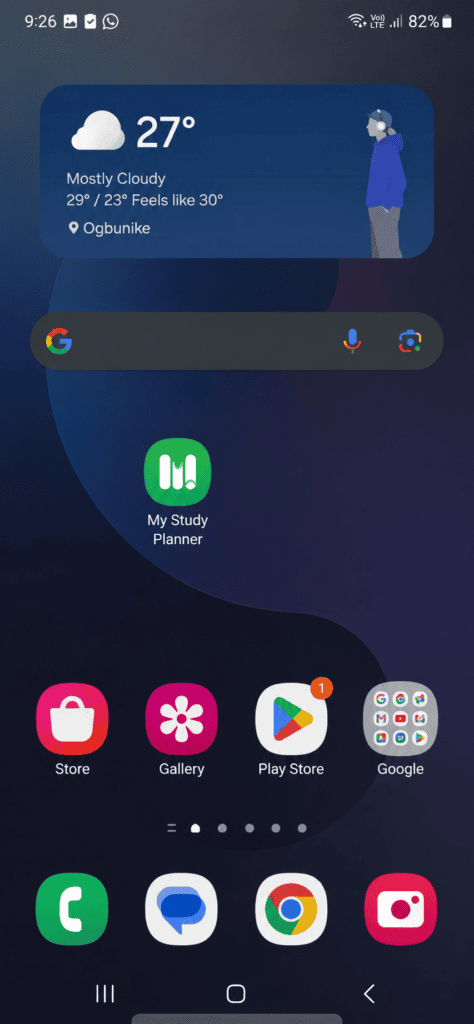
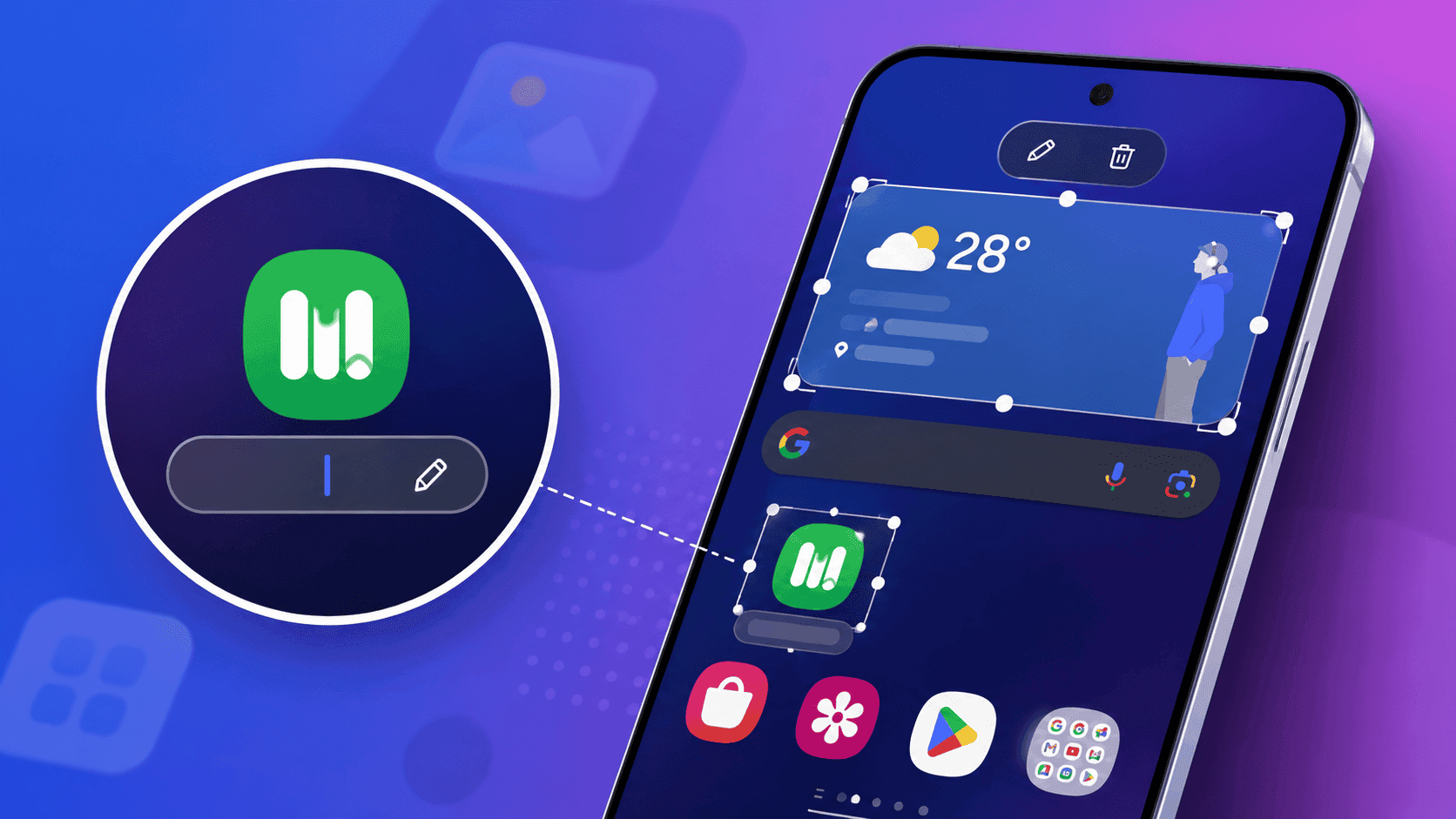
Custom app label on a Samsung Galaxy home screen
The rename feature applies to items placed on the home screen. It does not provide a general rename command for every app inside the app drawer.
This distinction matters when you organize your phone. A shortcut may show “Bills” on the home screen while Settings still lists the app under its official name.
Requirements Before You Start
You need a compatible Galaxy device, current Samsung software, Good Lock, and the Home Up module.
Check these requirements before you begin:
- Your phone or tablet should run One UI 8.5 or newer.
- Good Lock must come from the Galaxy Store.
- Home Up must be installed and enabled inside Good Lock.
- The app or widget must sit on your home screen.
- Your device must use Samsung’s One UI Home launcher.
Check your software version by opening Settings > About phone > Software information. Find the One UI version entry and confirm the installed version.
The official Home Up Galaxy Store listing confirms support for newer One UI devices. Samsung’s listing also shows that Home Up supports different features across phones, tablets, and foldables.
| Software setup | Label editing support | What to expect |
|---|---|---|
| One UI 8.5 with updated Home Up | Yes | The supported setup for this feature |
| One UI 8 with Home Up | Not guaranteed | Newer controls may not work |
| One UI 7 or older | Not confirmed | Use label hiding or another launcher |
| One UI Home without Home Up | No | The default launcher lacks direct renaming |
| Third-party launcher | Depends on the launcher | Menus and features vary |
WARNING: Your custom labels depend on Home Up remaining active. Disabling the module can make the labels return to their default names.
How to Edit App and Widget Names on Samsung Galaxy Phones
Follow these steps to install the required tools and enable the hidden label setting.
Install Good Lock and Home Up
- Open the Galaxy Store on your Samsung Galaxy phone.
- Search for Good Lock.
- Install the official Good Lock app from Good Lock Labs.
- Open Good Lock after the installation finishes.
- Tap the Plugins tab at the bottom.
- Select Home Up and install the module.
You can also search for Home Up directly in the Galaxy Store. Good Lock acts as the main app, while Home Up provides extra controls for Samsung’s home screen.
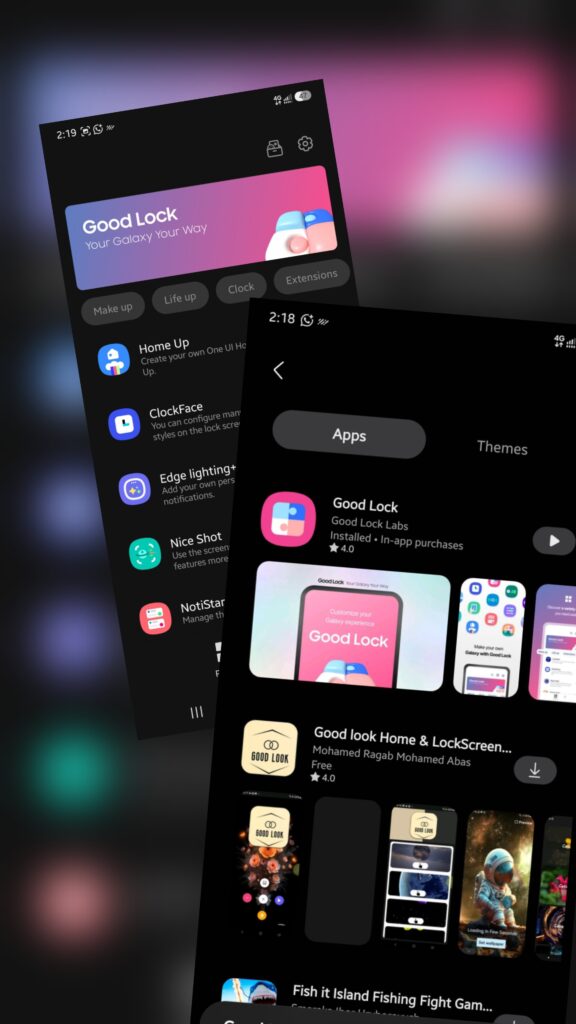
Enable the label editing option
- Open Good Lock.
- Tap Home Up.
- Turn on the main Home Up switch.
- Tap Home screen.
- Enable App icon setting.
- Tap App icon setting.
- Turn on Edit item label on home screen.
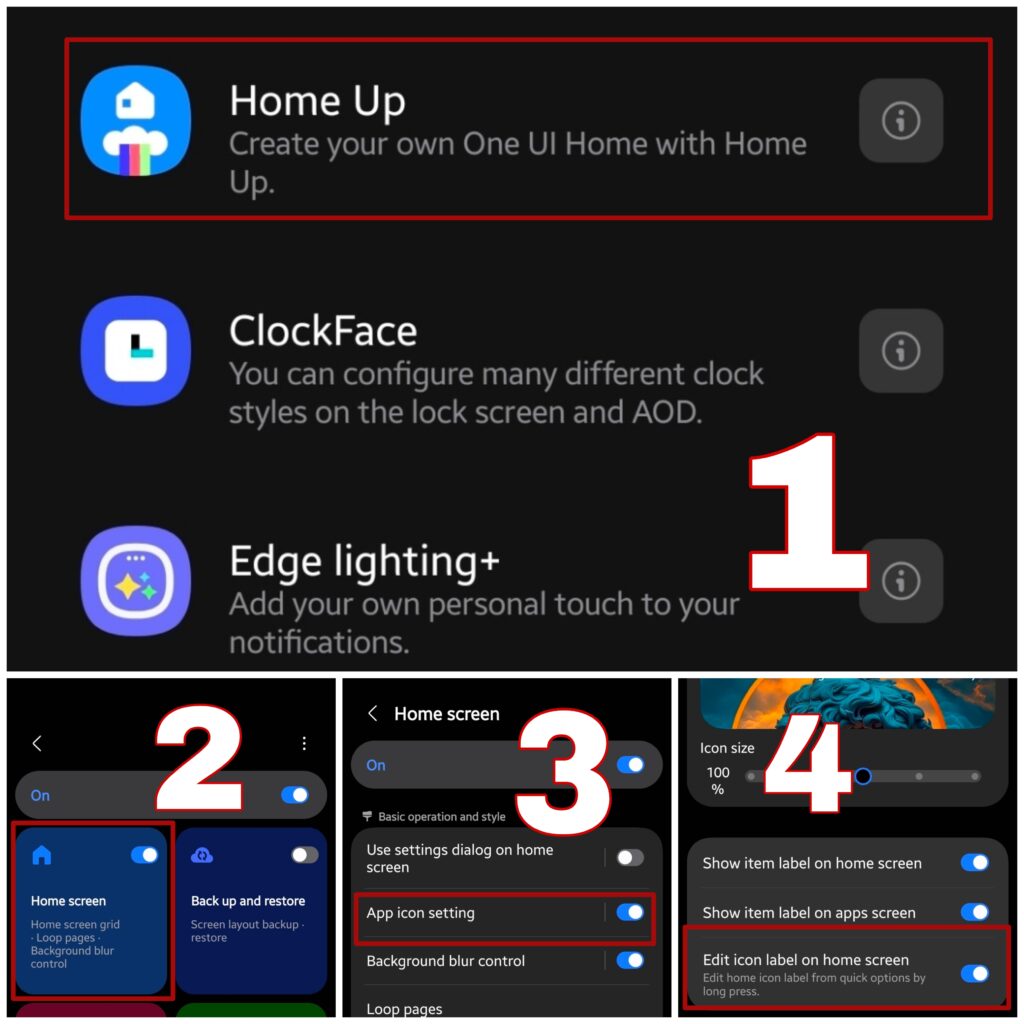
The wording may change slightly after a Home Up update. Search for an option containing App icon, item label, or edit label if the menu looks different.
Return to the home screen after enabling the setting. You should now see an editing control when you select a supported shortcut or widget.
Rename an app shortcut
- Return to your home screen.
- Touch and hold the app icon you want to rename.
- Tap the pencil-shaped edit icon beside the current label.
- Delete the existing name.
- Enter your new label.
- Tap outside the text field to save it.
The new label should appear beneath the icon immediately. The app keeps its original name everywhere else.
Use short names whenever possible. Longer labels can wrap onto multiple lines and create uneven spacing across the home screen.
Rename a widget
- Touch and hold the widget on your home screen.
- Tap the pencil-shaped edit icon beside its label.
- Replace the current text with your preferred name.
- Tap outside the editing area to save the change.
Widget support can vary by app. Samsung explains in its official Galaxy widget guide that widget controls differ between applications.
Some widgets allow resizing, color changes, and transparency controls. Other widgets expose only basic settings.
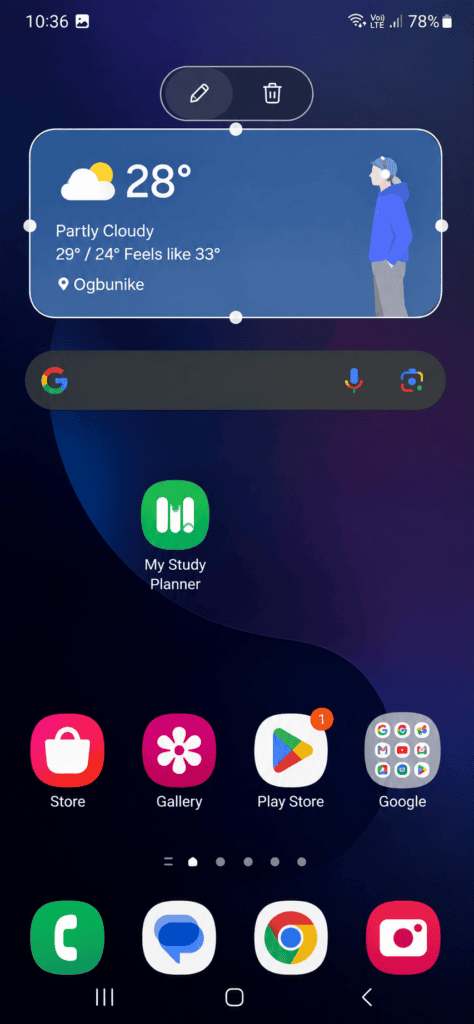
What Changes and What Stays the Same
Renaming affects the home screen display only. It does not change the app’s official name, package identity, notification title, or app drawer entry.
| Area | What changes | What stays the same |
|---|---|---|
| Home screen app label | The displayed text changes | The installed app name remains unchanged |
| Home screen widget label | The displayed text changes | Widget content remains unchanged |
| App drawer | Usually no change | The developer’s original label remains |
| Settings > Apps | No change | Android keeps the official app name |
| Notifications | No change | Notifications use the app’s normal identity |
| Search | Results vary by launcher | The app’s original identity remains |
This feature works best for home screen organization. It cannot rename an app across the entire operating system.
Do you want shorter labels for a cleaner layout, or clearer labels for faster access? Good Lock supports both approaches, depending on how you organize your screen.
Common App and Widget Renaming Problems and How to Fix Them
Problem: The Edit item label option does not appear
Cause: Your device may run an older One UI version, or Home Up may need an update.
Fix:
- Open Settings > About phone > Software information.
- Confirm your One UI version.
- Open the Galaxy Store.
- Update Good Lock.
- Update Home Up from the Good Lock Plugins tab.
- Reopen Home Up > Home screen > App icon setting.
One UI 8 support does not guarantee access to every One UI 8.5 feature.
Problem: The pencil icon does not appear
Cause: Home Up may be disabled, or you may be selecting an item inside the app drawer.
Fix:
- Open Good Lock.
- Select Home Up.
- Turn on the main Home Up switch.
- Open Home screen > App icon setting.
- Enable Edit item label on home screen.
- Return to the home screen.
- Touch and hold the shortcut again.
The rename control works from supported home screen items. The app drawer does not offer the same editing route.
Problem: Custom labels disappear
Cause: Home Up may have been disabled, removed, or reset during an update.
Fix:
- Open Good Lock.
- Check whether Home Up remains installed.
- Turn on the Home Up switch.
- Return to the home screen.
- Reapply the label if the custom text does not return.
Custom labels depend on the Home Up module. Removing the module removes the control that displays those labels.
Problem: A widget cannot be renamed
Cause: The widget may not support custom labels, or its layout may use a different editing menu.
Fix:
- Remove the widget from the home screen.
- Add the same widget again.
- Confirm that label editing remains enabled.
- Touch and hold the widget.
- Look for the pencil-shaped edit icon.
- Test the feature with a Samsung widget such as Weather or Calendar.
Third-party widgets may not support the same controls. Samsung says widget settings vary between apps and widget types.
Problem: Home Up resets other settings
Cause: A Home Up update can reset settings when the module and One UI versions do not match.
Fix:
- Take screenshots of your existing Home Up settings.
- Check your One UI version before updating.
- Update Home Up through the Galaxy Store.
- Recheck the home screen after the update.
- Restore any settings that changed.
Avoid manually installing a Home Up build intended for a newer One UI version. Compatibility problems can affect more than app labels.
Tips for Better Home Screen Labels
Short labels look cleaner on Samsung’s home screen grid. Use one or two words that describe the shortcut’s purpose.
Useful examples include:
- “Bills” for a payment app.
- “Work Chat” for a business messaging app.
- “Camera Pro” for a photography tool.
- “Today” for a daily schedule widget.
- “Focus” for a timer or productivity shortcut.
Use consistent naming across related apps. You could label personal and work versions with “Personal” and “Work.”
Home Up also supports label color changes on compatible versions. Use one color for work shortcuts and another for personal apps.
Do you keep beta and stable versions of the same app installed? Add a clear suffix to each shortcut so you can identify the correct version quickly.
Avoid long sentences, unusual symbols, and decorative characters. Small labels can become difficult to read on compact displays and foldable cover screens.
You can also hide labels instead of renaming them. Open Settings > Home screen and look for App labels or Widget labels. The exact options depend on your One UI version and device model.
Samsung’s home screen also supports widget resizing, stacks, and separate widget settings. Its official widget instructions explain how to touch and hold a widget, resize it, change its appearance, or remove it.
Frequently Asked Questions About Samsung Galaxy App and Widget Names
Q: Can I rename an app on a Samsung Galaxy phone?
A: Yes, you can rename its home screen label with Good Lock and Home Up on supported One UI 8.5 devices. The change affects the shortcut label only. The app keeps its original name inside Settings and the app drawer.
Q: Do I need Good Lock to rename app labels?
A: Samsung’s supported method requires Good Lock and the Home Up module. One UI Home does not normally provide a direct rename command. A third-party launcher may offer a separate feature.
Q: Can I rename widgets on a Samsung Galaxy phone?
A: Supported widgets can use the Home Up label editor. Touch and hold the widget, then look for the pencil icon beside its label. Support varies by widget developer and app type.
Q: Does renaming an app change its app drawer name?
A: No. Renaming changes the home screen display. The app drawer usually keeps the original label assigned by Samsung or the developer.
Q: Why did my custom labels disappear?
A: Home Up may have been disabled, removed, or reset after an update. Open Good Lock, enable Home Up, and check the label settings. The custom labels should return on supported devices.
Q: Does Home Up work on One UI 7?
A: Home Up supports different features across One UI versions. The app and widget label feature described here targets One UI 8.5 and newer. Check the current Galaxy Store listing before installing.
Q: Can I rename an app without Good Lock?
A: Not through Samsung’s standard One UI Home launcher. A third-party launcher may offer renaming, but its menus and behavior will differ from Samsung’s method.
Give Your Galaxy Home Screen Better Labels
Good Lock and Home Up provide Samsung’s cleanest route for renaming home screen app and widget labels. Start with one shortcut, use a short name, and check the result across your entire home screen layout.
Keep Home Up enabled if you want the custom names to remain visible. You can also combine custom labels with Samsung’s other home screen controls for a more organized setup.
Which app or widget will you rename first? Share your preferred label in the comments.